
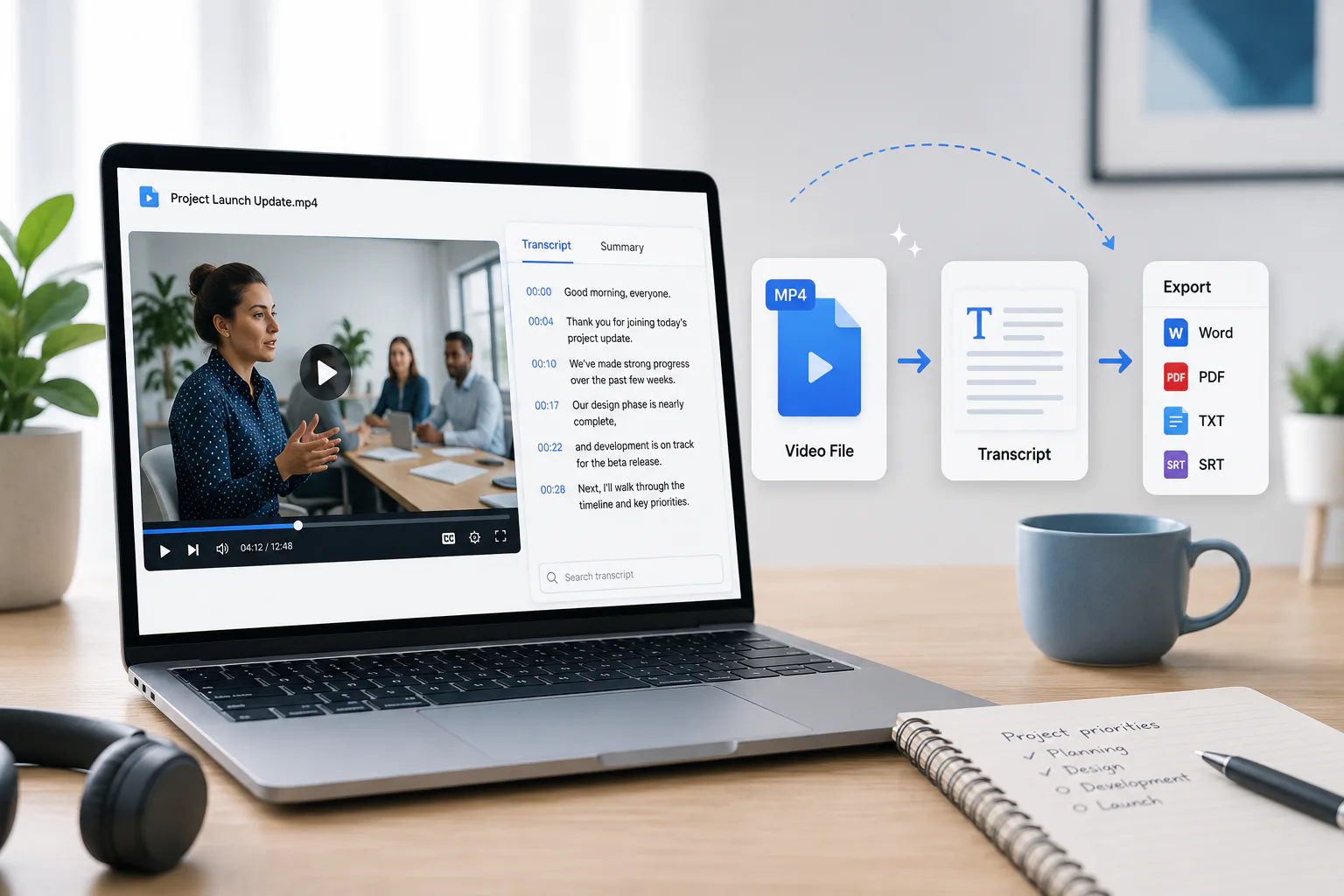
To convert an MP4 to a transcript, upload the video file to an AI transcription service such as TranscribeNext — there is no need to extract the audio or convert the file first. The audio track is read straight out of the container and returned as text with timestamps and speaker labels. Across 5,266 MP4 files we processed, a recording of 30–60 minutes finished in a median of 3.8 minutes. Drop a file below to try it: the first 5 minutes are transcribed free, with no account.
Transcription guide · Updated July 2026 · 9 min read
MP4 to Transcript: Convert Video to Text
Drop an MP4 below and get an editable transcript with speaker labels and timestamps. Below the uploader: what actually happens to your file, and how long it really takes — measured across 5,266 MP4 uploads.
Free
Free preview transcribes the first 5 minutes on the spot — no credit card, no sign-up. Sign in afterwards for the full transcript, speaker labels and exports.
Quick answer: Upload the MP4 to an AI transcription tool, let it detect the spoken language, then review and export the text as TXT, DOCX, PDF, SRT, VTT or JSON. You do not need to convert the MP4 or extract the audio — but if your file is large and your connection is slow, pulling the audio track out first can cut the upload from gigabytes to megabytes. The numbers for that decision are further down.
Disclosure: TranscribeNext is our transcription service. The measurements on this page come from our own production data and are described with their sample sizes so you can judge them. This guide also covers when YouTube captions, Microsoft Word or offline Whisper is the better tool.
What is actually inside an MP4 — and what gets transcribed
An MP4 is not an audio format and not really a video format either. It is a container: a wrapper holding separate streams, usually one video track (typically H.264 or HEVC) and one audio track (usually AAC). Transcription only ever reads the audio track. The video — the part that makes the file big — is discarded.
This one fact explains almost everything people find confusing about transcribing MP4s: why a 2 GB file can produce the same transcript as a 40 MB one, why "converting MP4 to MP3" before uploading changes nothing about accuracy, and why an MP4 recorded on a phone can transcribe worse than an MP3 of the same conversation.
Here is what that costs in practice. These are median file sizes per minute of recording, measured across our own uploads:
| Container | Median size per minute | Relative to M4A | Files measured |
|---|---|---|---|
| MOV (.mov) | 33.9 MB | 56× | 987 |
| MP4 (.mp4) | 5.4 MB | 9× | 4,550 |
| WAV (.wav) | 1.8 MB | 3× | 1,187 |
| MP3 (.mp3) | 0.92 MB | 1.5× | 10,586 |
| M4A (.m4a) | 0.61 MB | 1× (baseline) | 8,481 |
A typical MP4 carries about nine times more data than the audio inside it. The median MP4 people send us is 84 MB for 18 minutes of recording; the top 5% are over 1.3 GB, and the largest we have processed was 4.9 GB. The audio track in that 4.9 GB file was a few tens of megabytes. Everything else was pixels that transcription never looks at.
MP4 is the third most common thing people upload to us — 5,266 files, 14.7% of everything — behind MP3 and M4A. It is the format that comes out of Zoom, Teams, QuickTime, OBS, phone cameras and screen recorders, which is why so many transcripts start life as video. The MP4 transcription format page lists the technical limits — duration, size and the audio codecs inside the container — and supported audio and video formats covers everything else you might be starting from.
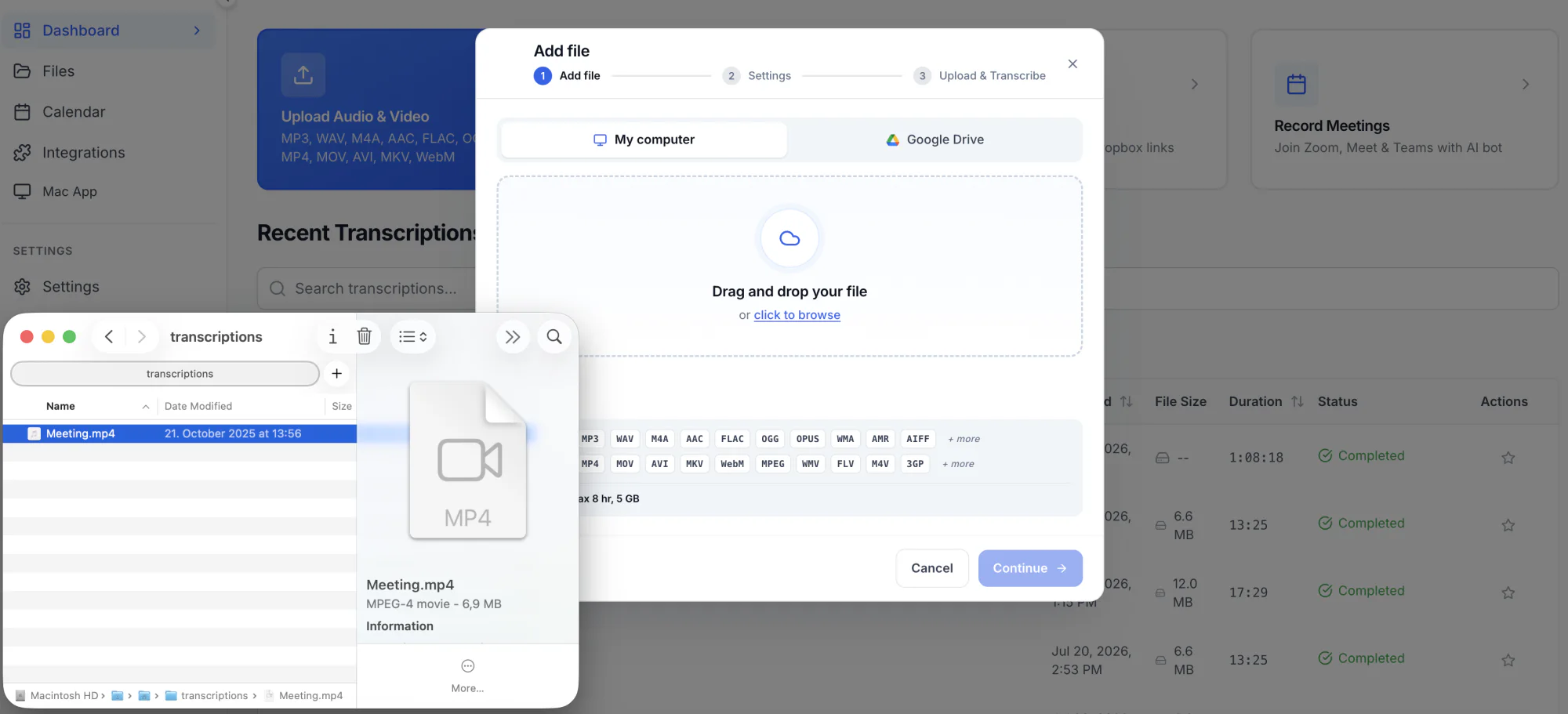
How to convert MP4 to transcript in 5 steps
To convert an MP4 to a transcript, upload the file, confirm the spoken language, let the AI process the audio track, review the result, and export it in the format you need.
- Use the original MP4. Do not re-encode, trim in a lossy editor, or run it through a "converter" site first. Every re-encode throws away audio detail, and the transcription reads that audio. The file straight off the recorder is the best version you have.
- Upload the MP4. Drop it into the box at the top of this page. There is no need to extract the audio or convert to MP3 — the audio track is read out of the container automatically. MOV, MKV, WebM, AVI and M4V work the same way.
- Confirm the language. Auto-detect handles most recordings. If the audio is quiet, heavily accented, or switches between languages, setting the language explicitly is more reliable than letting detection guess from the opening seconds.
- Let it process, then read it against the audio. Check names, numbers, acronyms, quotations and any stretch where people talked over each other. These are where machine transcription is wrong, and they are the parts that matter most.
- Name the speakers and export. Choose DOCX to keep editing, PDF to send, TXT for plain text, SRT or VTT to burn subtitles back onto the video, and JSON when another program has to read it.
How long does it take to transcribe an MP4?
Most tools answer this with "in minutes", which is true and useless. Here is the actual distribution across our completed MP4 jobs — median and 90th percentile, measured end to end from the moment the file lands to the moment the transcript is ready:
| Length of MP4 | Median time | 9 in 10 finish within | Speed vs real time | Files measured |
|---|---|---|---|---|
| Under 10 minutes | 42 seconds | 5.6 minutes | 4.7× | 1,641 |
| 10–30 minutes | 1.8 minutes | 20.4 minutes | 9.9× | 1,278 |
| 30–60 minutes | 3.8 minutes | 25.1 minutes | 11.8× | 902 |
| Over 60 minutes | 5.4 minutes | 32.4 minutes | 18.3× | 632 |
Two things worth reading out of that table. First, longer files are proportionally faster: an hour-long MP4 is transcribed at roughly 18× real time, a short clip at under 5×, because fixed costs — upload, queueing, model start-up — dominate a three-minute file. Second, the gap between the median and the 90th percentile is large, and almost all of it is upload time, not processing. A 1.3 GB MP4 on a domestic connection spends far longer being sent than being transcribed. That is the problem the next section solves.
Should you extract the audio from the MP4 first?
Usually no. You do not need to, and every extra conversion is a chance to degrade the audio. But there is one case where it is clearly worth it: a large MP4 on a slow connection.
Since the video track is discarded anyway, stripping it before upload costs you nothing in accuracy and, on the median MP4 in our data, cuts roughly 89% of the bytes. On the files in the top 5% — those over 1.3 GB — it turns a long, failure-prone upload into a short one.
If you have FFmpeg, this copies the audio track out without re-encoding it, so nothing is lost:
ffmpeg -i recording.mp4 -vn -acodec copy recording.m4a-vn drops the video, -acodec copy passes the audio through untouched. The result is an M4A holding exactly the audio the transcription would have read anyway — how to convert M4A to text walks through that file type, including a measured run on a 58-minute meeting recording. Avoid re-encoding to MP3 at this step (-acodec libmp3lame) unless something downstream demands MP3 — it is a lossy round trip that can only make the audio worse.
What actually decides MP4 transcript accuracy
Competing pages advertise "98%" or "99.9% accuracy" without saying what was measured, on what audio, against whose reference transcript. Those numbers are not comparable to each other and are not predictive of your file. Accuracy is normally expressed as word error rate — the share of words inserted, deleted or substituted against a human reference — and it varies far more with your recording than with the choice of tool.
What moves it, roughly in order of impact:
- Overlapping speech. Two people talking at once is the single hardest case, and it is common in exactly the meetings people most want transcribed.
- Microphone distance. A laptop microphone across a conference table picks up the room more than the voice. A headset or a lapel mic is worth more than any setting.
- Background noise. Air conditioning, cafés, traffic and keyboard clatter all cost accuracy; steady noise costs less than intermittent noise.
- Accents and domain vocabulary. Names, drug names, legal citations, ticker symbols and internal jargon are the words most often wrong — and usually the words that matter.
- Audio bitrate. This is where MP4 can genuinely hurt: screen recorders and conferencing apps sometimes write a 32 kbps mono AAC track. Detail lost at recording time cannot be recovered later.
- Codec and container. Almost irrelevant. An MP4 and an MP3 of the same source transcribe the same.
The honest summary: on a clean, close-mic recording of one or two people, modern AI transcription needs light proofreading. On a phone in the middle of a noisy six-person meeting, it needs real editing. No tool on the market escapes this, and any page that quotes you a single accuracy percentage for your file is guessing. If your recording is audio rather than video, how to transcribe audio to text covers the same ground for MP3, WAV and M4A files, including when Word or offline Whisper is the better choice.
Is MP4 to transcript free?
Partly, everywhere — and the word "free" hides very different things across the tools ranking for this term. It is worth knowing which kind you are being offered:
- A free trial measured in minutes. The most common model. You get a set number of transcription minutes, then pay.
- A free preview of every file. What we do — the first 5 minutes of any MP4 are transcribed immediately with no account, so you can judge the quality on your audio before deciding anything.
- "Free forever", ad-supported or limited. Usually means shorter files, no speaker labels, no export formats beyond plain text, or your recording being used to train models. Check the terms rather than the headline.
- Genuinely free and offline: Whisper on your own machine. No cost and nothing leaves your computer, at the price of installing it and supplying the hardware. For confidential material this is the right answer, not a compromise.
MP4 to transcript: the options compared
| Method | Best for | Speaker labels | Main limitation |
|---|---|---|---|
| AI transcription service | Meetings, interviews, lectures, podcasts, course videos | Yes | Needs proofreading; paid beyond the free tier |
| YouTube auto-captions | Video you were going to publish anyway | No | Must upload publicly or unlisted; no speakers; awkward to export |
| Microsoft Word Transcribe | Microsoft 365 users already working in Word | Basic | Monthly upload cap; stores your audio in OneDrive |
| Offline Whisper | Confidential recordings; unlimited local processing | Extra setup | Install, model download, and speed tied to your hardware |
| Human transcription service | Publication, legal filings, specialist terminology | Yes | Cost per minute; turnaround in hours to days |
| Typing it yourself | Very short or extremely sensitive clips | Yes | 3–6 hours of work per hour of recording |
Speaker labels: who said what
A transcript of a meeting without speaker labels is a wall of text. Speaker detection (diarisation) splits the transcript into turns and tags each one, so it reads as a conversation.
Across the MP4 files where speakers were detected, two-speaker recordings are by far the most common, followed by three, then one — the shape you would expect from interviews, one-to-one calls and podcasts. Files with six or more speakers exist but are the tail, and they are also where diarisation makes the most mistakes: the more people, and the more they interrupt, the harder the problem.
Automatic labels come out as "Speaker 1", "Speaker 2" and so on; you rename them once and the whole transcript updates. In our editor you can also reassign a stretch of speech to a different speaker by typing their name on its own line — useful when two people were merged into one label.
Languages
Transcription covers more than 100 languages, and MP4 uploads use a lot of them. In our data English accounts for roughly 83% of MP4 files, followed by Spanish, French, Chinese, Russian, Korean, Portuguese, Arabic, Hebrew and Japanese.
Two practical notes. Auto-detect reads the opening seconds, so a recording that starts with music or silence can be misdetected — set the language yourself if the first words are not speech. And a recording that switches languages mid-sentence is genuinely hard for every tool; expect to correct the switch points by hand.
Export formats
Which format you want depends on what happens to the transcript next:
- TXT — plain text, for searching, pasting and feeding into other tools.
- DOCX — Word and Google Docs, when the transcript will be edited further.
- PDF — a fixed document to send or file.
- SRT and VTT — subtitle files, to put the text back onto the MP4 it came from. This is the reason many people transcribe a video in the first place; if the video is headed for YouTube, uploading your own captions instead of the automatic ones is worth reading first.
- JSON — timings, speakers and word-level data for another program to consume.
Privacy: what happens to your video
Before uploading anything sensitive — a client call, a medical consultation, an internal meeting — check three things about any service, ours included: whether your files are used to train models, how long they are retained, and whether you can delete them. If the answers are not written down plainly, treat that as the answer. For material that legally cannot leave your organization, run Whisper locally; no cloud service, at any price, changes that calculus.
Getting a better transcript out of an MP4
- Record the audio properly in the first place. Nothing you do afterwards recovers as much as a microphone close to the person speaking.
- Ask people not to talk over each other in recorded meetings. It is the single biggest source of errors.
- Upload the original file. Not a re-export, not a screen recording of a playback, not a compressed copy sent through a chat app.
- Say names and technical terms clearly at the start where you can — a clean first mention gives the model a better chance at every later one.
- Proofread against the audio, not against plausibility. Machine transcripts are wrong in fluent, believable ways; a sentence that reads fine can still be wrong.