
The fastest way to transcribe audio to text is to upload the recording to an AI transcription service such as TranscribeNext. Upload an MP3, WAV, M4A, MP4 or another supported file, and the transcript is generated automatically — a one-hour recording is usually ready in minutes, while manual transcription commonly takes 3–6 hours. Drop a file below to try it now: you get a free 5-minute preview with no account.
Transcription guide · Updated July 2026 · 8 min read
How to Transcribe Audio to Text: 5 Easy Methods
Upload a recording and get an accurate transcript in minutes — plus when Word, Windows voice typing or offline Whisper is the better call.
Free
Free preview transcribes the first 5 minutes on the spot — no credit card. Sign in afterwards for the full transcript, speaker labels and exports.
Quick answer: To turn audio into text, upload the recording to an AI transcription tool, let it detect the language, and start the transcription. Review the generated text while listening to difficult sections, rename the speakers, and download the final transcript as TXT, DOCX, PDF, SRT, VTT or JSON.
Disclosure: TranscribeNext is our transcription service. This guide also explains when Microsoft Word, Windows voice typing, Audacity or manual transcription may be a better option.
How to transcribe audio to text in 5 steps
To transcribe audio to text, upload the recording to an AI transcription service such as TranscribeNext, let it detect the language, review the generated text, and export the final transcript.
- Prepare the recording. Find the original audio or video file and use the highest-quality version available — avoid repeatedly converting or compressing it. Common formats such as MP3, WAV, M4A, MP4, FLAC, AAC, OGG, MOV, AVI, MKV and WebM can be uploaded directly.
- Upload the audio. Drop the file into the box above or choose it from your device. Video recordings can be uploaded without extracting the audio first.
- Confirm the language. Auto-detect handles most recordings; for a signed-in account you can also set the language and enable speaker detection for interviews, meetings and podcasts.
- Generate and review the transcript. Wait for the AI to process the recording, then review names, numbers, technical terms, quotations and any sections affected by background noise or overlapping speech.
- Edit and export. Rename the speakers, correct uncertain words, and choose a format: DOCX for editing, PDF for sharing, TXT for plain text, SRT or VTT for subtitles, and JSON for software integrations.
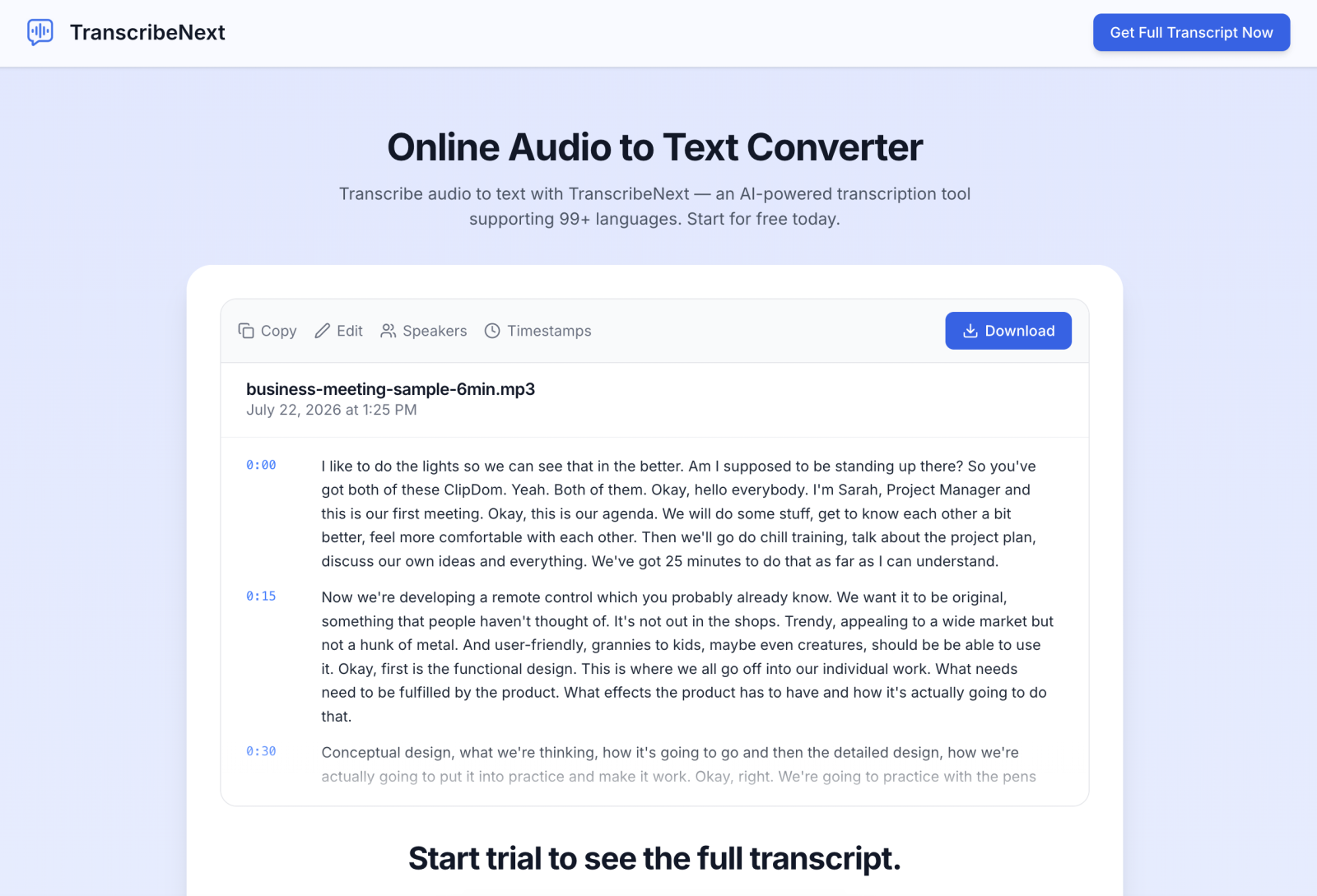
TranscribeNext supports audio and video uploads, speaker labels, timestamps, more than 100 languages, and exports to TXT, DOCX, PDF, SRT, VTT and JSON. Its Premium plan accepts recordings up to 8 hours and 5 GB. If you are starting from video rather than audio, converting an MP4 to a transcript covers what changes — including measured processing times by file length, and when it is worth stripping the video track before uploading.
What is the fastest way to transcribe audio to text?
The fastest way to transcribe audio to text is AI transcription, which processes a recording far faster than typing it out by hand. Manual transcription of one hour of audio commonly takes 3–6 hours, so automated processing is roughly an order of magnitude quicker.
| Method | Best for | Main limitation |
|---|---|---|
| AI transcription service | Most meetings, interviews, lectures, podcasts and videos | Needs proofreading |
| Microsoft Word Transcribe | Microsoft 365 users working in Word | Few upload formats; stores audio in OneDrive |
| Windows voice typing | Live dictation into a text field | Cannot upload a prerecorded file |
| Offline Whisper (Audacity / Mac) | Confidential files and unlimited local processing | Install and model download; speed depends on hardware |
| Manual transcription | Short, highly sensitive or difficult recordings | Slow (3–6 hours per hour of audio) |
| Professional human service | Publication, legal review or specialist terminology | Higher cost, turnaround in hours to days |
Method 1: How to transcribe audio to text with TranscribeNext
You can transcribe audio to text with TranscribeNext in five steps and export the result in six formats: TXT, DOCX, PDF, SRT, VTT or JSON.
- Drop a file into the box at the top of this page (or open TranscribeNext.com).
- Upload an audio or video file — up to 8 hours and 5 GB on the Premium plan.
- Let it auto-detect the spoken language, or set it manually when signed in.
- Turn on speaker detection for a multi-person recording.
- Review, edit and export the transcript.
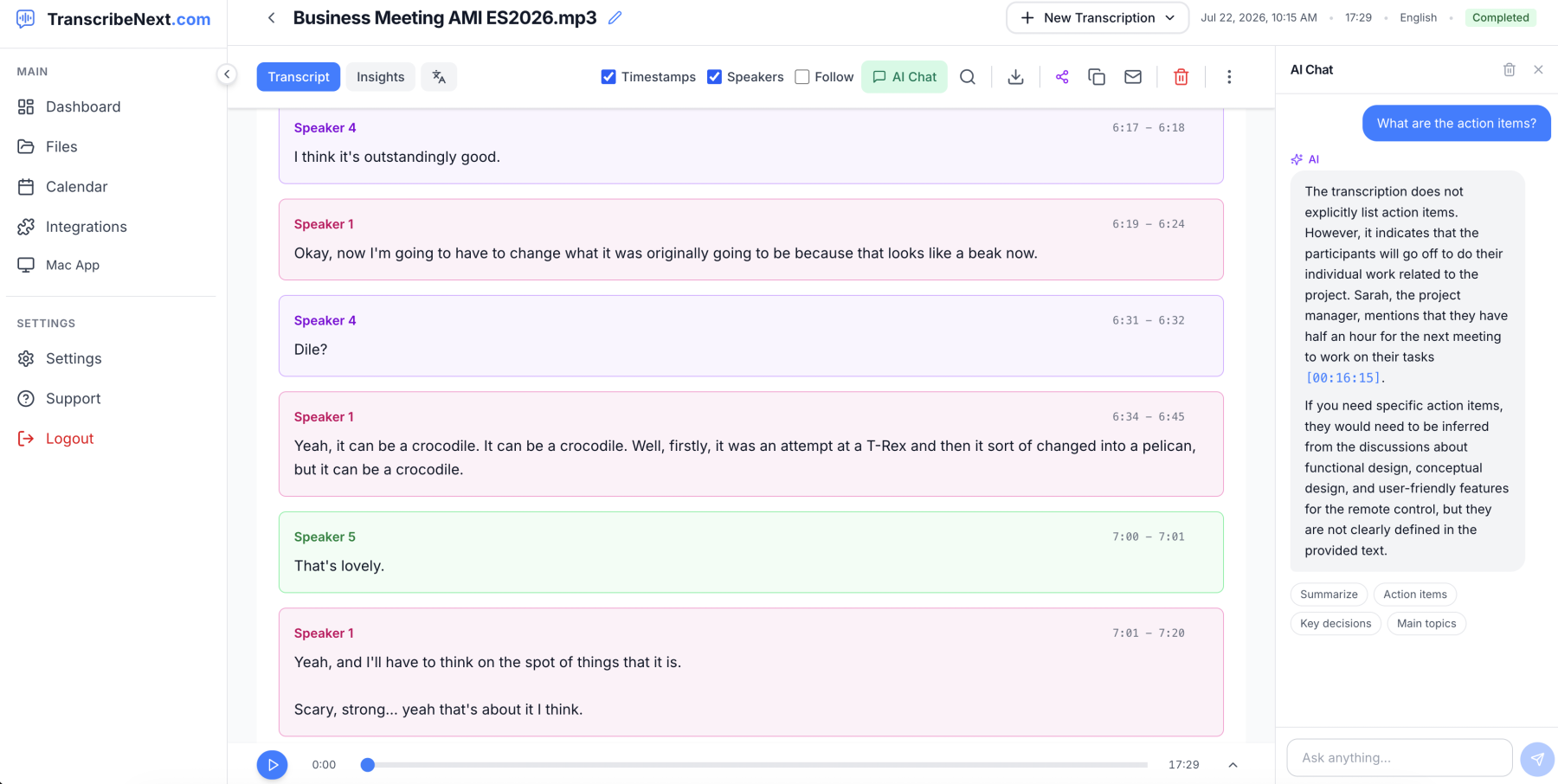
TranscribeNext is most useful when you need more than a block of plain text. The editor connects text to timestamps, separates speakers, and can generate summaries, action items, meeting notes and key quotes. It runs OpenAI Whisper and NVIDIA Parakeet — the same engines a Whisper-based tool uses — so accuracy comes from the model, not marketing. A free plan is available without a credit card, so you can test the workflow and accuracy on your own recording before choosing a paid plan.
Method 2: How to transcribe audio to text in Microsoft Word
Microsoft Word can transcribe four uploaded formats — WAV, MP4, M4A and MP3 — through Home → Dictate → Transcribe. Sign in to Microsoft 365, open Word, choose Transcribe, upload the file, wait for the transcript, then insert it into the document.
Word stores uploaded recordings in the Transcribed Files folder in OneDrive and can divide the conversation into Speaker 1, Speaker 2 and so on. Microsoft warns that processing can take up to roughly the length of the audio file. Word is convenient if you already have Microsoft 365 and want the text inside a document; a dedicated platform is usually better when you need more input formats, faster processing, subtitles, AI summaries, team sharing or longer recordings.
Method 3: How to convert live speech to text on Windows
Windows voice typing converts live speech to text with one shortcut: press Windows + H while the cursor is in a text field, then speak. It is meant for live dictation, not for uploading a saved interview, meeting or lecture. To process a prerecorded file, use TranscribeNext, Microsoft Word Transcribe or Audacity with Whisper.
Method 4: How to transcribe audio to text offline for free
Audacity can transcribe audio locally with its official Whisper plugin, without uploading the recording or hitting a cloud minute limit. Install Audacity and the AI plugins, import the file, open the Analyze menu, run the Whisper transcription, then export the label track as a subtitle or text file. This suits confidential recordings, unlimited personal transcription and situations with no internet — processing speed depends on your computer and the model you pick.
OpenAI developed Whisper as a multilingual speech-recognition system trained on 680,000 hours of supervised multilingual and multitask audio, which is why it handles varied accents, background noise, languages and technical speech well — although every transcript still needs review.
How to transcribe privately on a Mac
TranscribeNext for Mac is another offline option. The desktop app records system audio and microphone input, runs Whisper or NVIDIA Parakeet locally, identifies speakers and generates meeting notes without sending the recording to a server. It requires Apple Silicon, macOS 14.2 or later and at least 8 GB of RAM; once the models are downloaded, recording, transcription, speaker detection and local summaries all work with no internet connection.
Method 5: How to transcribe audio manually
Manual transcription of one hour of audio commonly takes 3–6 hours, depending on typing speed, audio quality, terminology, accents and the number of speakers. Listen through once, build a list of names and terms, use headphones and a player with keyboard shortcuts, work in 10–30-second sections, mark unclear words instead of guessing, and proofread against the recording. Skilled transcriptionists need roughly 3–4 hours per recorded hour; beginners can need 6–8. A practical hybrid is to create the first draft with AI and manually verify names, numbers, quotations and unclear passages.
How to improve audio transcription accuracy
To improve accuracy, optimize seven factors before and after processing:
- Use the original recording. Avoid repeatedly converting or compressing the file.
- Reduce background noise. Fans, traffic, music and keyboard sounds can hide consonants and short words.
- Keep microphones close. A clear phone recording beats a distant laptop mic in a large room.
- Avoid overlapping speech. Speaker detection and word recognition drop when people talk at once.
- Select the correct language. Manual language selection reduces mis-detection in short or multilingual audio.
- Check names and specialist terms. Product names, surnames, abbreviations, medications and technical vocabulary deserve manual verification.
- Review from the timestamp. Do not fix uncertain text from context alone — replay the original audio.
No AI transcription tool should be treated as 100% accurate. Extra review is essential for legal, medical, financial, academic, employment and publication content.
How to measure transcription accuracy
To measure AI transcription accuracy, compare a 100-word reference sample and calculate the word error rate (WER) from substitutions, deletions and insertions:
WER = (substitutions + deletions + insertions) ÷ reference words × 100
For example, a verified 100-word passage with 4 substituted words, 2 missing words and 1 inserted word gives (4 + 2 + 1) ÷ 100 × 100 = 7%, so about 93% word accuracy. For a representative test, measure at least three sections: a clean one, a noisy one, and one with multiple speakers or specialist vocabulary.
Because accuracy is a property of the model, here are the published benchmarks for the engines behind most modern tools — numbers most transcription guides never quote:
| Engine | Word Error Rate | Benchmark |
|---|---|---|
| OpenAI Whisper large-v3 | 2.5% | LibriSpeech test-clean (clean English) |
| Whisper medium | 2.9% | LibriSpeech test-clean |
| Whisper small | 3.4% | LibriSpeech test-clean |
| NVIDIA Parakeet TDT 0.6B v3 | 6.34% | Open ASR Leaderboard (25 languages, multi-domain) |
Benchmarks are not directly comparable: LibriSpeech test-clean is clean read English, while the Open ASR Leaderboard mixes 25 languages and harder domains. Real-world audio with background noise scores worse than both, which is why proofreading still matters.
Word error rate (%) — lower is better
Whisper large-v32.5%
Whisper medium2.9%
Whisper small3.4%
Parakeet v36.34%
How to transcribe audio with multiple speakers
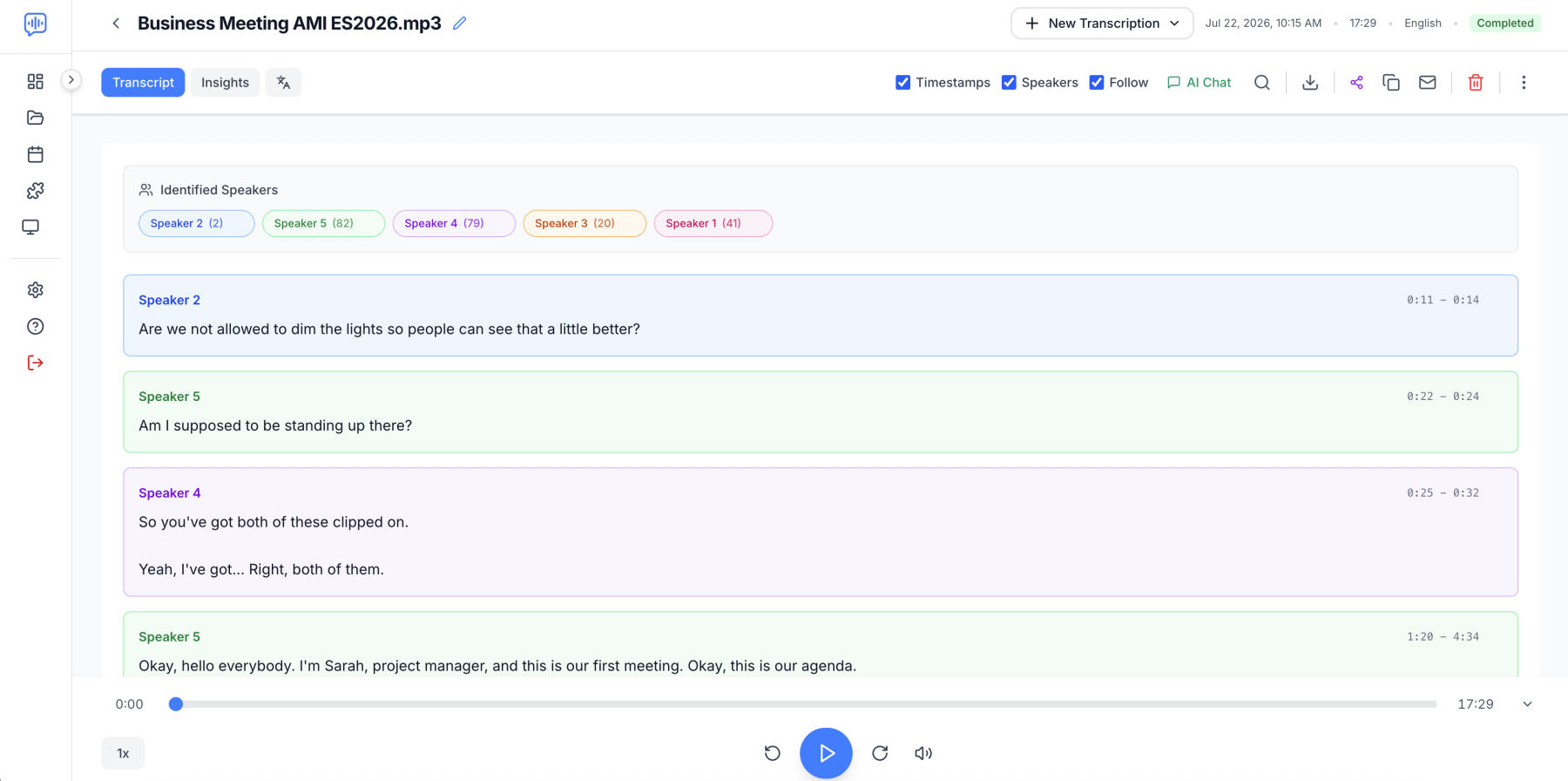
For audio with two or more speakers, enable speaker detection before processing and verify every speaker change while reviewing. Use separate microphones or channels when possible, ask people not to talk over one another, review the first several speaker changes, rename generic labels such as Speaker 1 and Speaker 2, and export the transcript with labels included. Speaker identification and word recognition are different measurements — a transcript can contain the right words but assign them to the wrong speaker, so review both.
How to transcribe long audio files
TranscribeNext processes recordings up to 8 hours and 5 GB on its Premium plan, so most interviews, lectures, podcasts, workshops and meetings do not need to be split first. Upload the original file when it is within the limit, confirm the language, enable speaker detection, and allow extra processing time for large video files. Split a file only when it exceeds the upload limit or contains clearly separate sessions — cut at natural breaks, not mid-sentence, and keep a few seconds of context around each split.
Which audio and video formats can be transcribed?
The converter accepts 35 file types — 22 audio and 13 video — and you normally do not need to extract audio from a video first: the service reads the audio track inside MP4, MOV, AVI, MKV and WebM files.
| Format | Type | Typical source |
|---|---|---|
| MP3 | Compressed audio | Podcasts, voice recorders, downloads |
| WAV | Uncompressed audio | Professional recorders, studio audio |
| M4A | Compressed audio | iPhone Voice Memos, Apple devices |
| FLAC | Lossless audio | High-quality archives and music |
| AAC / OGG / Opus | Compressed audio | Mobile devices, streaming, open-source apps |
| WMA | Audio | Older Windows recordings |
| MP4 / MOV | Video | Meetings, webinars, iPhone, cameras |
| AVI / MKV / WebM | Video | Older cameras, screen recordings, browser video |
Which transcript format should you download?
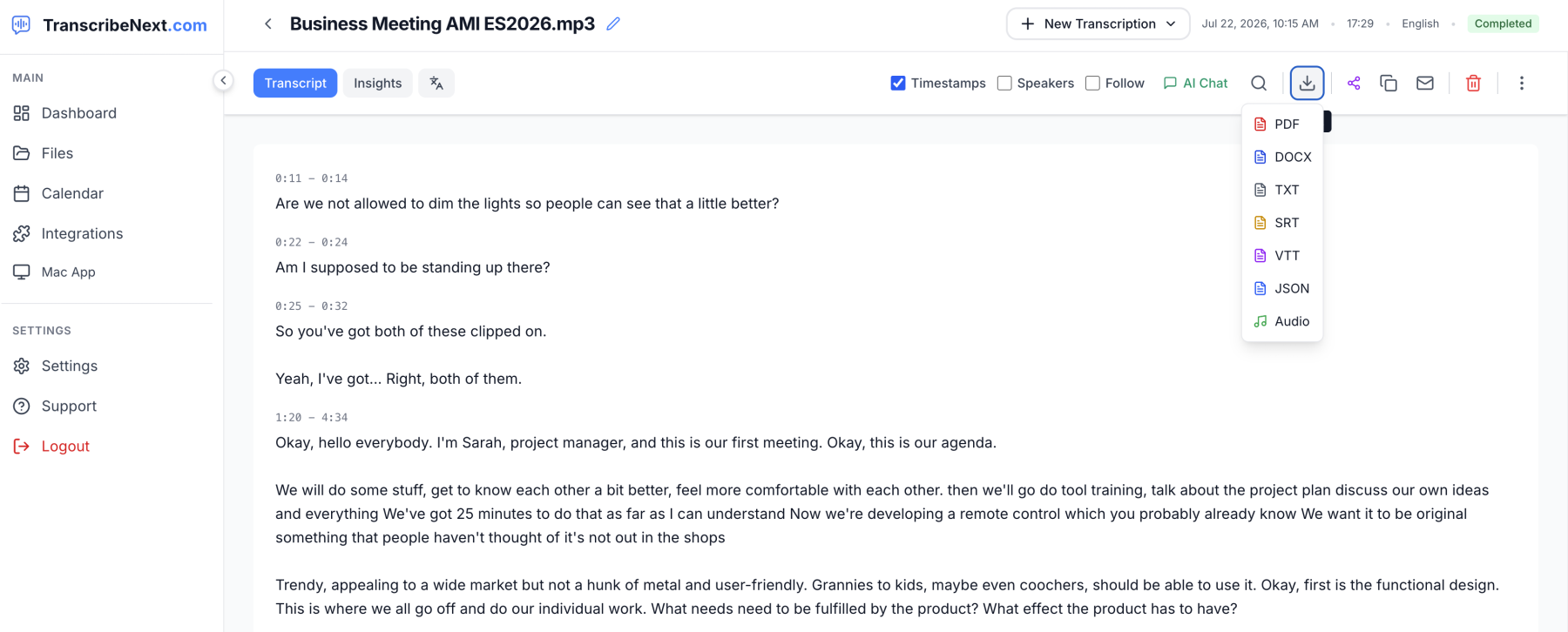
Choose one of six transcript formats based on the next task: TXT, DOCX, PDF, SRT, VTT or JSON.
| Format | Choose it when you need to |
|---|---|
| TXT | Copy plain text into another app |
| DOCX | Edit, format or collaborate in Word |
| Share a stable, non-editable document | |
| SRT | Add timed subtitles to a video |
| VTT | Add captions to a website or HTML5 video |
| JSON | Send timestamps, segments and speaker data into software |
On the free plan you can export TXT, Markdown, and JSON or download the original audio; PDF, DOCX, SRT, and VTT are part of the paid plans. Download more than one format when a transcript has several purposes — for example DOCX for editing and SRT for a captioned video.
Can you transcribe audio from a video?
Yes. Upload the MP4, MOV, AVI, MKV or WebM file and the platform extracts the spoken audio, generates the transcript, adds timestamps and can create subtitles — no need to extract the audio first. For YouTube and other supported platforms you can often paste the video URL instead of downloading it. Confirm that you own the content or have permission to process it.
Can you transcribe audio to text for free?
Yes, though free transcription usually comes with at least one limit: maximum minutes, file duration, number of uploads, restricted exports, slower processing or local hardware requirements. The easiest free options are the TranscribeNext free plan for online transcription, TranscribeNext for Mac for local recording and transcription, Microsoft Word if Microsoft 365 is already in your subscription, Windows + H for live dictation, and Audacity with its Whisper plugin for local files. "Free" does not always mean unlimited or safe for confidential files — check upload limits, retention, export restrictions and whether the audio is processed locally or sent to a server.
Do you need to proofread an AI transcript?
Yes. Every AI-generated transcript should be reviewed at least once, even when the recording sounds clear. Pay particular attention to people and company names, dates, prices, measurements and percentages, quotations, acronyms and technical terms, speaker labels, overlapping conversation, and sections with silence, music or background noise. For ordinary notes a quick review is enough; for legal evidence, medical records, published quotations, academic research, employment decisions or financial instructions, compare every critical statement with the original recording.
Is online or offline transcription better?
Online transcription is usually better for speed, sharing, integrations, browser access, translations and exports — team meetings, podcasts, lectures and searchable cloud archives. Offline transcription is better when recordings must stay on the device or internet access is unreliable — confidential meetings, sensitive research, travel and secure facilities. For many people the best workflow is hybrid: process everyday recordings through the TranscribeNext web app and use TranscribeNext for Mac or Audacity for recordings that must remain local.
Start transcribing audio to text
For the simplest workflow, drop your recording into the box at the top of this page, let it detect the language, and review the preview. Sign in to unlock the full transcript, rename speakers and export as TXT, DOCX, PDF, SRT, VTT or JSON. For private Mac recordings, download TranscribeNext for Mac and process the audio locally without uploading it to the cloud.