
To record a Teams meeting, join the meeting, select More actions > Record in the meeting controls, choose the spoken language and select Confirm. Transcription starts automatically with the recording. When the meeting ends, the recording is saved as an MP4 to the organizer's OneDrive, or to the team's SharePoint site for a channel meeting.
This guide shows how to record a Teams meeting step by step, who is allowed to press Record, where Teams recordings are stored, how to download the recording and the transcript, and what to do when Teams will not let you record or transcribe. Every limit below is quoted from Microsoft's documentation, checked on 13 November 2026.
Recording a Teams meeting at a glance
| How to record | More actions > Record > choose language > Confirm |
| Who can record | The organizer and people from the same organization. Not guests, people from another organization, or anonymous participants |
| License | Office 365 Enterprise E1, E3, E5, F3, A1, A3, A5, M365 Business, Business Premium, or Business Essentials — for both the organizer and the person recording |
| Transcription | Starts automatically with the recording; 57 spoken languages |
| Where it is stored | Organizer's OneDrive (Recordings folder); channel meetings go to the team's SharePoint site |
| File formats | Recording: .mp4. Transcript: .docx or .vtt |
| Who can download | By default, only the organizer and co-organizers |
| On mobile | You can record, but live transcription is desktop only; the transcript is viewable after the meeting |
| If Teams will not let you record | Transcribe the MP4, send a recording assistant, or record on your own Mac or PC — see below |
- How to record a Teams meeting, step by step
- Who can record a Teams meeting?
- What does a Teams recording not capture?
- Where are Teams recordings stored?
- How to download a Teams recording
- How to transcribe a Teams meeting
- How to download a Teams meeting transcript
- What to do when you cannot record or transcribe in Teams
- Teams recording vs TranscribeNext
- How we checked, and our own numbers
- FAQ
- Sources
How to record a Teams meeting, step by step
To record a Teams meeting on desktop, open the meeting controls, select More actions, then Record, pick the spoken language and what to record, and select Confirm. Everyone in the meeting is notified automatically, and only one person can record at a time.
- Start or join the meeting.
- Select More actions > Record in your meeting controls.
- Specify your spoken language and what you want to record. To record sound without video, choose Audio only in the Choose what to record menu.
- Select Confirm.
- To stop, select More actions > Recording. Choose Recording to stop both the recording and the live transcription, or Transcribing to stop only the transcription and keep recording.
On the Teams mobile app the path is shorter: More options > Start recording, and More options > Stop recording to end it.
Three behaviors are worth knowing before you rely on a recording:
Who can record a Teams meeting?
The meeting organizer and people from the same organization can record a Teams meeting, provided they hold one of the licenses Microsoft lists, an IT admin has enabled recording for them, and the organizer's cloud recording policy is on. Guests, people from another organization and anonymous participants cannot start or stop a recording.
| Type of user | Can start recording? | Can stop recording? |
|---|---|---|
| Meeting organizer | Yes | Yes |
| Person from the same organization | Yes | Yes |
| Person from another organization or company | No | No |
| Guest | No | No |
| Anonymous | No | No |
The licenses Microsoft names are Office 365 Enterprise E1, E3, E5, F3, A1, A3, A5, M365 Business, Business Premium, or Business Essentials. Both the meeting organizer and the person recording need one. The organizer does not have to be in the meeting for a colleague to record it.
Can you record a Teams meeting as a guest?
No. A guest cannot record a Teams meeting, and neither can someone who joins from another organization. Microsoft's documentation says so in one line:
"Guests can't record meetings. Federated users can record calls, but not meetings."
— Microsoft Support, Start, stop, and find meeting recordings in Microsoft Teams
Guests and external attendees are also limited after the meeting: they can view the recording only if it is explicitly shared with them. If that is your situation, skip to what to do when you cannot record.
Why is the Record button missing or grayed out?
The Record button is unavailable when you are a guest or from another organization, when you or the organizer lack a listed license, when your IT admin has not enabled recording, or when someone else is already recording. Organizers with Teams Premium or a Copilot license can also limit who may record and transcribe: only organizers and co-organizers, presenters as well, or no one. Microsoft's own advice for recording problems is that you will probably need an IT admin to work through them.
What does a Teams recording not capture?
A Teams recording captures audio, video and screen sharing, but not everything that happens on screen. Microsoft lists five things a meeting recording will not capture:
Live captions are a separate case: Microsoft notes that captions are not captured in recordings or downloads, although you can turn them on while playing a recording in Teams.
Where are Teams recordings stored?
Teams recordings are stored in the meeting organizer's OneDrive for most meetings, in a folder named Recordings. Channel meeting recordings are stored in the channel team's SharePoint site and show up on the channel's Files tab. Either way, the recording also appears in the meeting chat or channel conversation.
| Meeting type | Where the recording is stored | Where to find it in Teams |
|---|---|---|
| Scheduled or instant meeting (not in a channel) | Recordings folder in the organizer's OneDrive | Meeting chat > Shared tab, or Calendar > past meeting > Recap |
| Channel meeting | The channel team's SharePoint site | The channel > Shared or Files tab |
Three details trip people up:
How to download a Teams recording
To download a Teams recording, open the meeting chat or channel, select the Shared tab, select the recording, then More options > Download. The file is an MP4. Microsoft states that by default only the meeting organizer and co-organizers can download it; everyone who was invited can watch it in Teams.
- Select the Shared tab in the meeting chat or channel.
- Find and select the meeting recording.
- Select More options > Download.
Microsoft's two pages on this do not say quite the same thing. The page on recording states that by default only meeting organizers and co-organizers can download or delete the recording. The page on downloading states that only the meeting organizer can download it. In practice, if you did not organize the meeting and see no Download option, ask the organizer for the file or for a sharing link — guests and external attendees can view a recording only when they are sent a direct link.
How to transcribe a Teams meeting
To transcribe a Teams meeting, either record it — transcription starts automatically with the recording — or start transcription alone: select More actions > Transcribe in the meeting controls, confirm the language everyone is speaking, and select Confirm. The transcript appears in real time with each speaker's name and a time stamp.
"When you record a meeting, transcription starts automatically."
— Microsoft Support, Start, stop, and download live transcripts in Microsoft Teams meetings
The limits that decide whether the built-in transcript will be good enough:
How to download a Teams meeting transcript
To download a Teams meeting transcript, open the past meeting chat in Teams, select Recap, then Transcript, and use the arrow next to Download to choose a .docx or .vtt file. By default only meeting organizers and co-organizers can download it; the transcript itself is stored in the organizer's OneDrive.
- Select Chat in Teams.
- Open the past meeting chat.
- Select Recap, then Transcript.
- Select the dropdown arrow next to Download and choose the file type: .docx to read and edit in Word, .vtt for captions.
Who can do what with a transcript, according to Microsoft:
| Participant | Start or stop | View live | View after | Download |
|---|---|---|---|---|
| Organizer | Yes | Yes | Yes | Yes |
| Person from the same organization | Yes | Yes | Yes | No, unless the organizer allows it |
| Person from another tenant | No | Yes | No | No |
| Anonymous | No | No | No | No |
People who call into a meeting by phone cannot view the transcript at all. Someone who joined from the Teams mobile app can read the transcript after the meeting; to give them the file, download it and upload it to the meeting chat.
What to do when you cannot record or transcribe in Teams
When Teams will not let you record or transcribe, there are four ways around it. If a recording exists, transcribe the MP4. If you cannot record at all, send a recording assistant that joins as a visible participant, or record the call on your own computer with the TranscribeNext app for Mac or Windows.
| Your situation | Why Teams stops you | What works |
|---|---|---|
| You are a guest or from another organization | Guests and external participants cannot record or start transcription | Ask the organizer to record and share the file, send a recording assistant, or record on your own Mac or PC |
| Recording is disabled or you have no license | Recording needs a listed license and an admin policy | Same as above — or ask your IT admin to enable it |
| The meeting was recorded, but there is no transcript you can use | Transcription was stopped, or only organizers can download the transcript | Get the MP4 and transcribe the file |
| The spoken language is not on Microsoft's list | Teams transcribes 57 spoken languages | Record anyway, then transcribe the MP4 in a tool that supports the language |
| You need subtitles or a format other than .docx and .vtt | Teams offers two transcript formats | Transcribe the MP4 and export SRT, PDF, TXT or Markdown |
The four options side by side:
| Option | How it works | Do the others see it? | Where to get it |
|---|---|---|---|
| Transcribe the MP4 | You upload the recording you downloaded from Teams | Nothing joins the meeting; you work with a file that already exists | MP4 to transcript |
| With a bot | You paste the Teams link; a recording assistant joins the meeting and records it | Yes — it is in the participant list, and the host has to admit it | Record Meetings in the web app |
| Without a bot, on a Mac | The desktop app records the call's sound on your Mac | No — nothing joins the meeting, so you have to tell people | Download for Mac |
| Without a bot, on Windows | The desktop app records the call's sound on your PC | No — nothing joins the meeting, so you have to tell people | Download for Windows |
Option 1: transcribe the MP4 you already have
A downloaded Teams recording is an ordinary MP4, and any transcriber that accepts MP4 can read its audio track — no conversion needed. Here is how it works with ours:
- Upload the recording. Drag the MP4 into the uploader near the top of this page, or open the MP4 to transcript page. The audio track is extracted on the server.
- Set the language and speakers. Leave the language on auto-detect or choose it, and turn on speaker labels for a meeting with more than one voice.
- Review and export. Correct names and any misheard words in the browser, then download the transcript.
In our own production log, a 58-minute meeting recording was transcribed in 2 minutes 22 seconds (one file, measured on 24 July 2026 — not a guaranteed rate; see methodology).
Three limits of ours to know before you rely on this:
Option 2: record a Teams meeting with a bot
A recording assistant is a bot that joins the Teams meeting as a named participant and records it from inside. It works for guests and for people without a recording license, because it does not use the Record button in Teams — but the host has to admit it, so it only works with the host's agreement.
- Sign in to TranscribeNext and select Record Meetings on the dashboard.
- Paste the Teams meeting link from your invitation into Meeting URL. The platform is detected from the link.
- Choose the language and speaker settings and select Start recording.
- Ask the host to admit the assistant. It waits in the lobby, joins as soon as it is let in, and leaves when the meeting ends. The transcript is ready after the meeting.
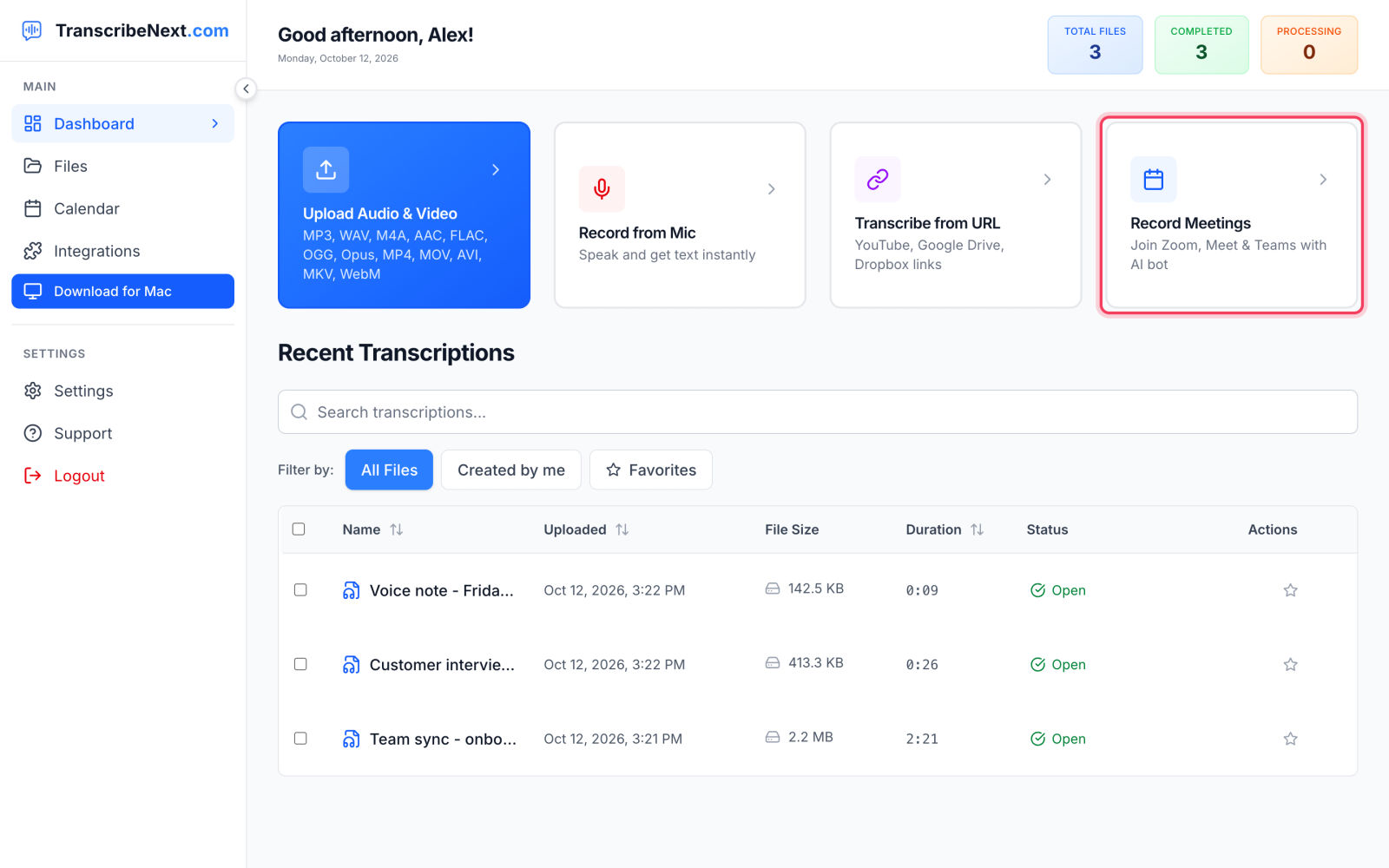
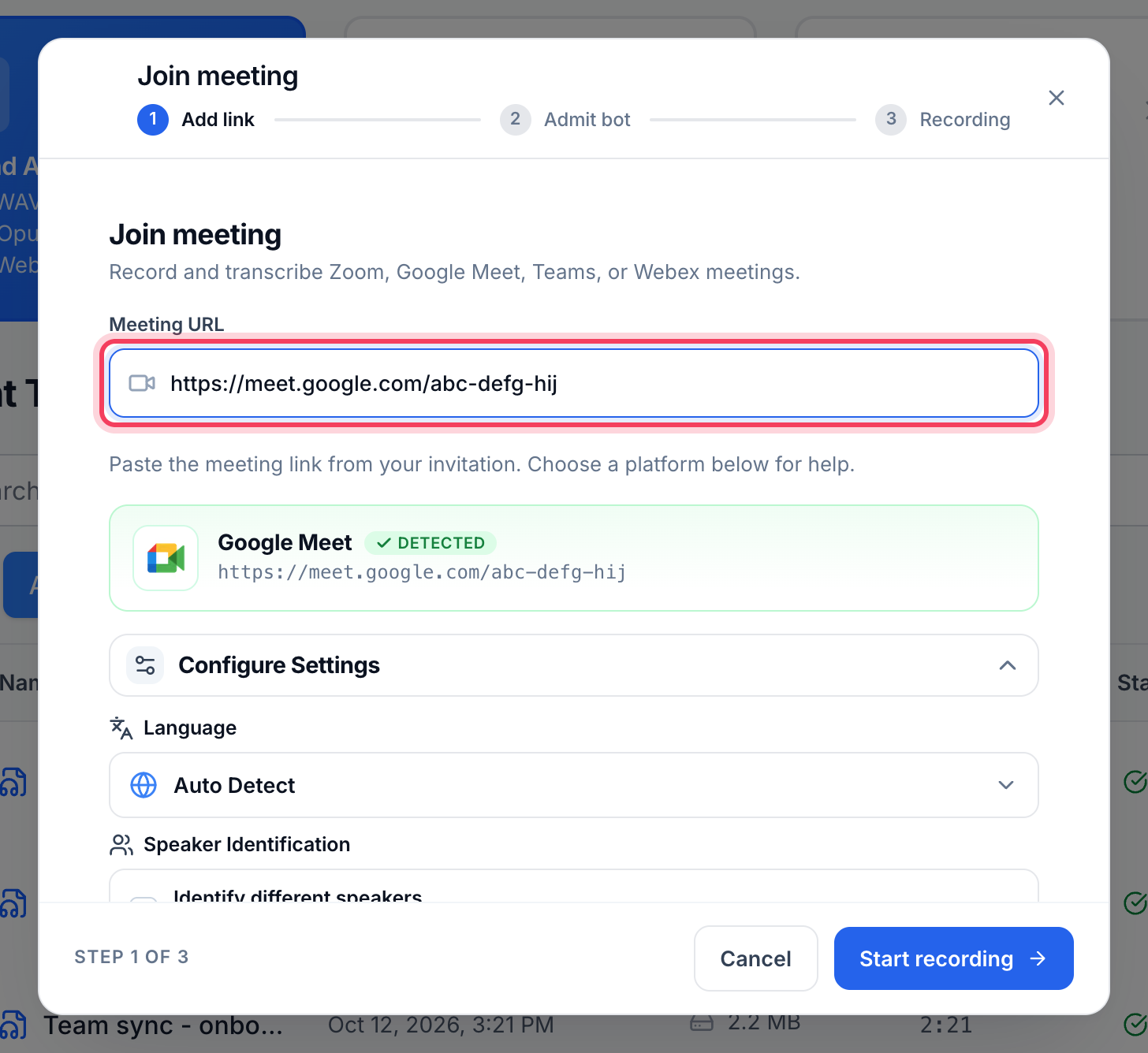
The same window takes Zoom, Google Meet, Teams and Webex links — the screenshot above shows a Google Meet link, and a Teams link goes into the same field. You can also connect Google Calendar or Outlook so every meeting with a video link is recorded automatically. Meeting recording with the assistant is available on the Plus and Premium plans; the setup is described in our Teams recording help article.
Option 3: record a Teams meeting without a bot on a Mac
TranscribeNext for Mac records a Teams call from your Mac's own audio — your microphone plus the system sound — so nothing joins the meeting and you need no meeting link. It notices when Teams starts a call and, depending on the setting you choose (Off, Ask or Auto-record), offers to record or starts by itself.
Download TranscribeNext for Mac →
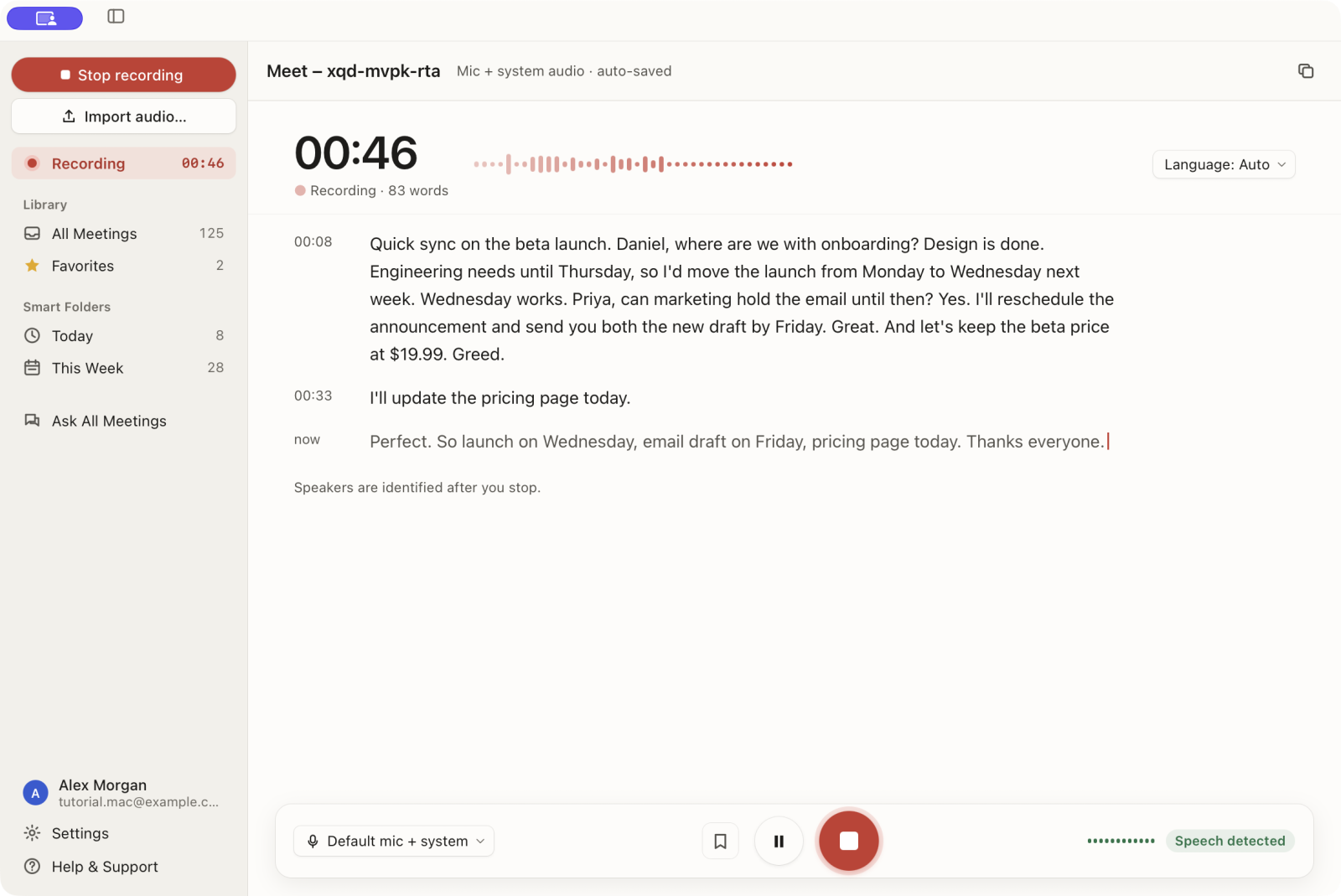
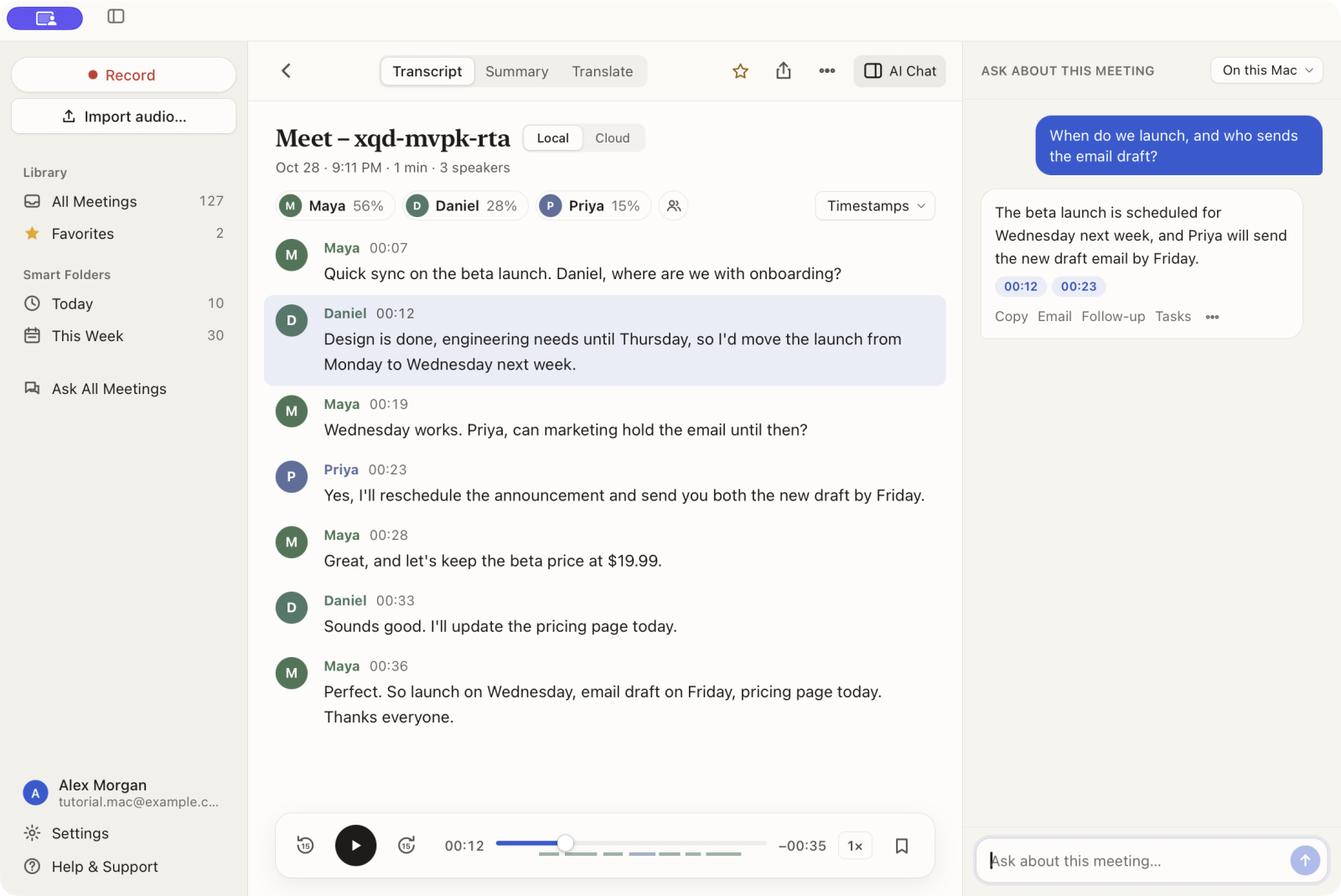
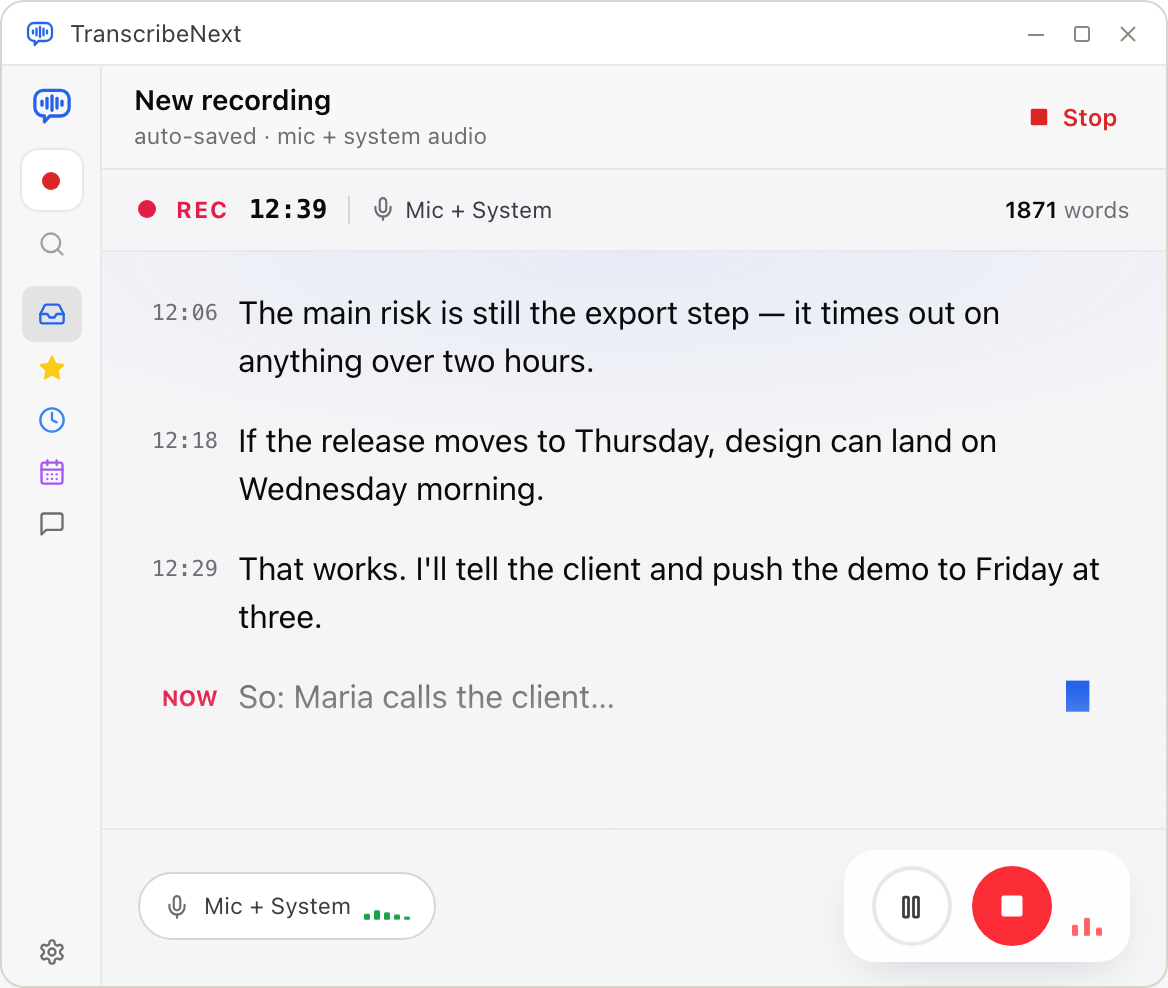
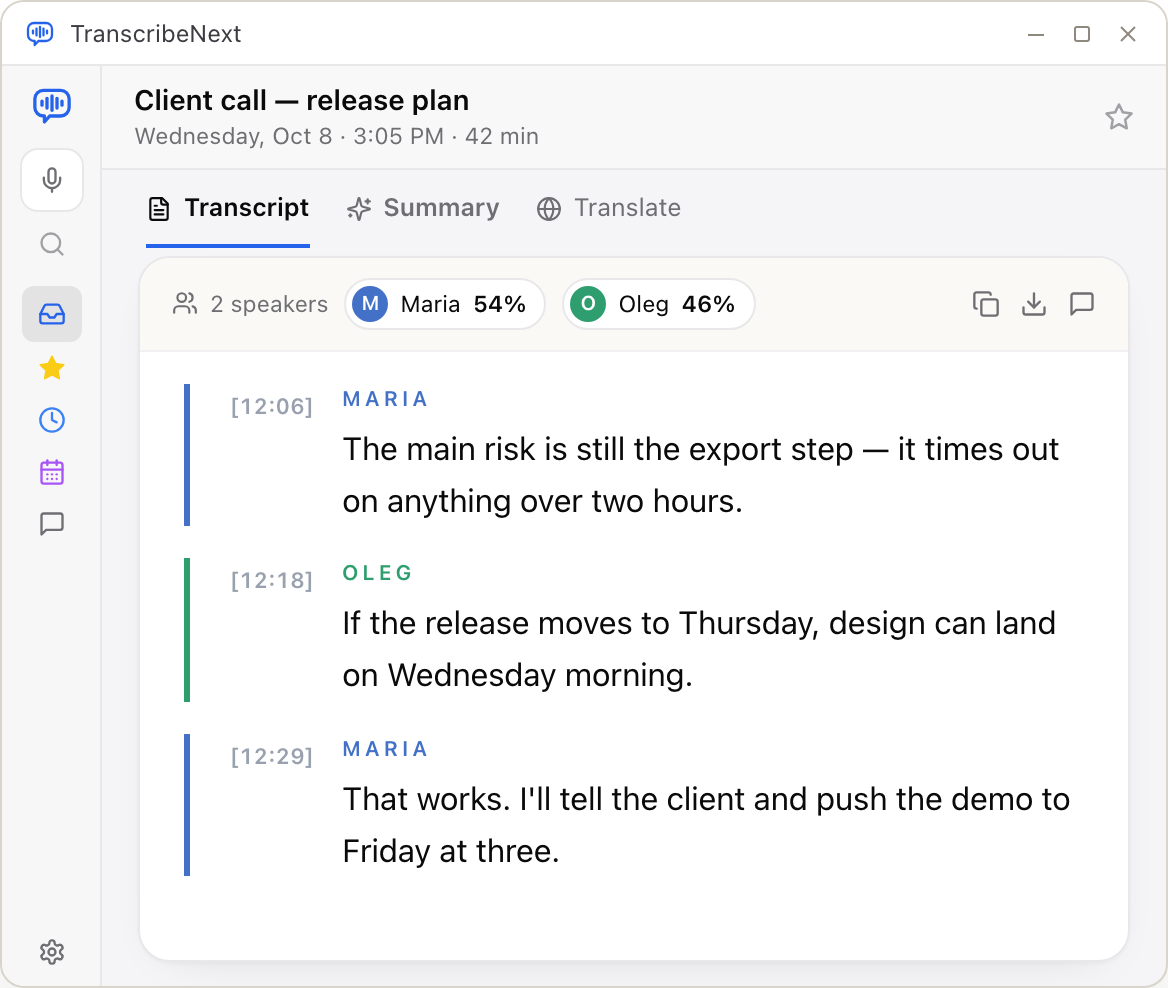
These two screenshots were taken during a browser call; a call in the Teams app is recorded on the same screen.
Option 4: record a Teams meeting without a bot on Windows
TranscribeNext for Windows does the same on a PC. It notices a call in the Teams desktop app — or in Teams in your browser while its tab is in front with your microphone on — and offers to record, or just starts.
Download TranscribeNext for Windows →
The app's main window while a meeting is being recorded, and the same meeting once it is finished, with the speakers named:
Tell people before you record
Whichever recorder you use, say that you are recording. Teams notifies everyone automatically, and Microsoft adds that, depending on your region, you may need everyone's permission before you can record them. A bot is at least visible in the participant list. A recorder that runs on your own computer shows no banner to anyone else, so telling people is up to you.
People rarely do it. In our analysis of 766 real online meetings, only 6.7% of recorded meetings contained anyone saying out loud that the meeting was being recorded or asking whether that was okay. The wording that works, and the rest of the data, is in our guide to virtual meeting etiquette.
Teams recording vs TranscribeNext
Neither is strictly better; each has limits the other does not. Teams is the right tool when you are the organizer or a licensed colleague, and a separate recorder is the right tool when you are not, or when you need something Teams does not produce.
| Microsoft Teams (built in) | TranscribeNext | |
|---|---|---|
| Who can start it | Organizer and licensed people from the same organization | Anyone who has the MP4; the bot needs the host to admit it; the Mac and Windows apps record on your own computer |
| Languages | 57 spoken languages, regional variants counted separately | 99 (Whisper family) |
| Speaker names | Real names from the Teams sign-in | Voices separated; labels are generic until you rename them |
| Transcript formats | .docx, .vtt | DOCX, PDF, TXT, Markdown, SRT, VTT, JSON |
| Who can download the transcript | Organizer and co-organizers by default | Whoever made it |
| Where it is stored | Organizer's OneDrive or the team's SharePoint site | Your own account; on your own computer with the Mac or Windows app |
| Cost | Included in the Microsoft 365 licenses listed above | First 5 minutes of a file free; full meetings on a paid plan |
| Best when | You organized the meeting and your organization allows recording | You are a guest, you only have the MP4, or you need subtitles |
How we checked, and our own numbers
Everything about Teams in this guide comes from three Microsoft pages, read on 13 November 2026 and listed under Sources. Where Microsoft's pages disagree with each other, as they do on who can download a recording, both statements are shown. Three numbers in it are our own counts and measurements.
1. Supported languages: 57
Method: counted the entries in the supported-languages list on Microsoft's live transcription page on 13 November 2026. Regional variants are separate entries, so the number of distinct languages is lower.
2. Transcription speed (production log)
Test date: 24 July 2026
Test file: 58-minute meeting recording (3,486 seconds)
Result: 2 minutes 22 seconds; 47,059 characters of transcript
One file on one day, not a guaranteed rate — queue load, length and audio quality all move it.
3. How often recording is announced: 6.7%
Data: 766 English-language online meetings of five minutes or longer, recorded between 23 December 2025 and 24 September 2026. The method is described in our virtual meeting etiquette study.
Last checked: 13 November 2026
Sources
Related guides: How to transcribe audio in Word · Virtual meeting etiquette: 12 rules · How to transcribe audio files quickly · Transcription tips for interviews
Get a transcript of your Teams meeting
If you organized the meeting and your organization allows it, press Record in Teams — transcription comes with it, and it is the shortest path. If all you have is the MP4, upload it in the form near the top of this page: the first 5 minutes are transcribed free with no account, and a paid plan handles the full meeting and exports DOCX, PDF, SRT or VTT. If you cannot record in Teams at all, send the recording assistant, or record on your own computer with TranscribeNext for Mac or TranscribeNext for Windows.
Frequently asked questions
How do I record a Teams meeting?
Join the meeting, select More actions > Record in the meeting controls, choose the spoken language and what to record, and select Confirm. Everyone in the meeting is notified, and transcription starts automatically. To stop, select More actions > Recording. Only one person can record a meeting at a time.
Can you record a Teams meeting if you are not the organizer?
Yes, if you are in the same organization as the organizer, have one of the licenses Microsoft lists, your IT admin has enabled recording, and the organizer's cloud recording policy is on. The organizer does not need to be present. Organizers with Teams Premium or a Copilot license can restrict recording to organizers and co-organizers.
Can a guest record a Teams meeting?
No. Microsoft states that guests can't record meetings, and that federated users can record calls, but not meetings. People from another organization and anonymous participants cannot start or stop a recording either. A guest has to ask the organizer to record and share the file, or agree on another recorder with the host.
Where are Teams recordings stored?
For most meetings the recording is stored in the Recordings folder of the meeting organizer's OneDrive. For a channel meeting it is stored in the channel team's SharePoint site and appears on the channel's Files tab. In both cases a link to the recording also appears in the meeting chat or channel conversation.
How do I download a Teams recording?
Open the meeting chat or channel, select the Shared tab, select the recording, then More options > Download. The file is an MP4. Microsoft states that by default only the meeting organizer and co-organizers can download or delete a recording, so if you see no Download option, ask the organizer for the file or a sharing link.
Does Teams transcribe meetings automatically?
Yes, when you record. Microsoft states that when you record a meeting, transcription starts automatically. You can also start transcription without recording: select More actions > Transcribe and confirm the spoken language. The transcript shows each speaker's name and a time stamp.
How do I get the transcript of a Teams meeting?
After the meeting, open the past meeting chat in Teams, select Recap, then Transcript, and use the arrow next to Download to choose .docx or .vtt. By default only organizers and co-organizers can download it. People from the same organization can read it in Teams; people from another tenant cannot view it after the meeting.
How many languages does Teams transcription support?
Microsoft's support page lists 57 spoken languages for Teams live transcription as of November 2026, counting regional variants separately, for example six variants of English. The meeting's spoken language has to be set correctly, because Teams transcribes in the one language selected for the meeting.
Can I transcribe a Teams meeting that was already recorded?
Yes. A Teams recording is an MP4 file, so if the meeting was recorded without a transcript, or you cannot download the transcript, upload the MP4 to a transcription tool. TranscribeNext reads the audio track of an MP4 and returns a transcript with separated speakers that you can export as DOCX, PDF, TXT, SRT or VTT.
Can I record a Teams meeting without others knowing?
Not with Teams. All participants get a notification as soon as a recording or transcription starts. Microsoft also notes that, depending on your region, you may need everyone's permission before you record them. Any other recorder needs the same consent, so tell people before you start.
How can I record a Teams meeting without a bot?
Use a desktop recorder that captures the call's sound on your own computer. TranscribeNext for Mac and TranscribeNext for Windows record a Teams call from the microphone and system audio, so nothing joins the meeting, and they show the transcript while people speak. Nobody else sees a banner, so tell the participants before you start.
Why is the Record button missing or grayed out in Teams?
Usually for one of four reasons: you are a guest or from another organization, you or the organizer lack one of the licenses Microsoft lists, your IT admin has not enabled recording, or someone else is already recording. Recording problems usually need your IT admin to resolve.