
Yes — Microsoft Word can transcribe an audio file. Open the Home tab, click the arrow next to Dictate, choose Transcribe, then Upload audio. Word returns a timestamped transcript with each speaker separated, which you can insert into the document or save as its own file. Two things decide whether this works for you: you need an active Microsoft 365 subscription, and your recording must be MP3, WAV, M4A or MP4 — Word accepts no other format.
This guide covers the exact steps, Microsoft's published limits, a format-by-format table of what Word will and will not take, and the route that gets the other 23 formats into a `.docx` anyway.
Word transcription at a glance
| Can Word transcribe audio? | Yes — Home → Dictate ▾ → Transcribe → Upload audio |
| Cost | Requires an active Microsoft 365 subscription |
| Accepted formats | .mp3, .wav, .m4a, .mp4 — and nothing else |
| Monthly limit | 300 minutes of uploaded audio (30,000 with a Copilot license) |
| Per-file size limit | Not published by Microsoft |
| Where it runs | In the cloud; audio is stored in a Transcribed Files folder on OneDrive |
| Speakers | Separated automatically, labeled generically |
| Languages | 80+ locales |
| Browsers (Word for the web) | New Microsoft Edge and Chrome only |
- Can Word transcribe an audio file?
- How to transcribe audio in Word, step by step
- Word online: where the feature actually appears
- Which audio formats can be transcribed into Word?
- How to get any recording into a .docx
- How to transcribe a video in Word
- Word Transcribe vs a dedicated transcriber
- Timestamps and speaker labels in the document
- The limits people hit first
- Test methodology and results
- FAQ
- Sources
Can Word transcribe an audio file?
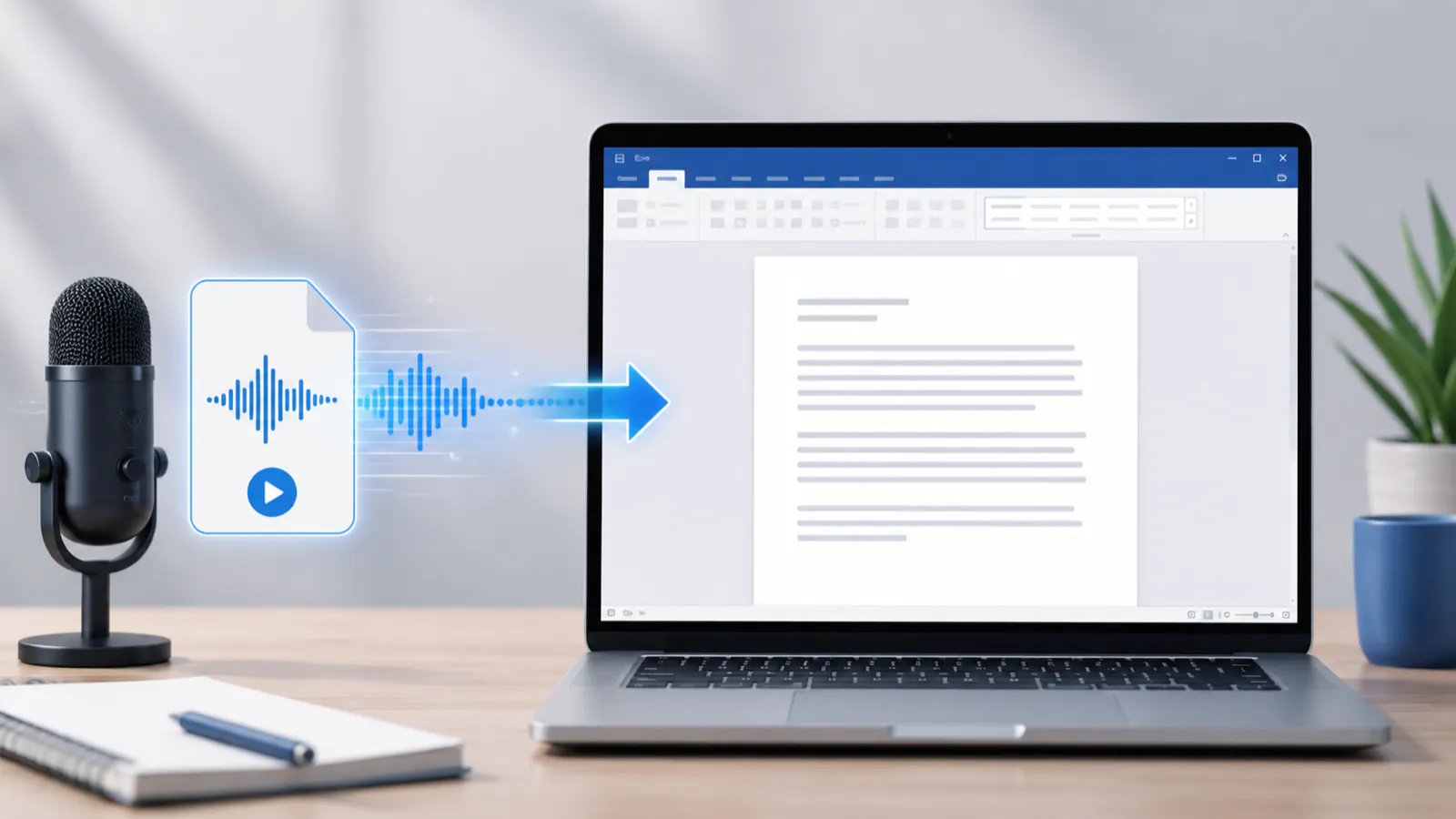
Yes, and it has done since the Transcribe feature shipped — but it is easy to look for it in the wrong place. Transcribe is not the same as Dictate. Dictate types what you say into the document live. Transcribe takes a recording you already have, uploads it, and hands back a structured transcript with timestamps and separated speakers that you can edit before inserting.
Three conditions have to be met before the button does anything:
How to transcribe an audio file in Word, step by step
1. Open Microsoft Word on your computer, or sign in to Word for the web at office.com.
2. Go to the Home tab.
3. Click the arrow next to the Dictate button (the microphone icon) and choose Transcribe.
4. In the Transcribe pane, click Upload audio and select your recording.
5. Wait while Word uploads and processes it. Longer recordings take longer; keep the pane open.
6. Review the result. You can edit the content of a section to fix recognition errors, and rename the generic speaker labels.
7. Click Add to document to insert the text — a single section, all sections, or the whole transcript with speakers and timestamps. You can also save the full transcript as a Word document.
That is the whole flow. The friction, when it comes, is never in the steps — it is in the format check at step 4 and the monthly allowance.
Word online transcribe: where the feature actually appears
This trips up a lot of people who follow the steps in the desktop app and find no Transcribe entry under Dictate.
Microsoft's own documentation states that in the desktop app the feature "is currently only available in Word for Microsoft 365 on Windows in Commercial Tenants." In practice that means many personal and family subscribers will only find Transcribe in Word for the web, not in the installed application — and Mac users of the desktop app are not in scope of that statement either.
Two more constraints apply to the web version specifically:
If the Transcribe option is missing from your Dictate menu, this is almost always why — before assuming your subscription is broken, try Word for the web in Edge or Chrome.
Which audio formats can be transcribed into Word?
This is the practical heart of the question, and it splits into two different answers.
Word's built-in Transcribe reads four formats. Anything else has to reach the document another way — either you convert it first, or you transcribe it in a tool that reads it natively and export the result as a `.docx` that Word opens directly.
The table below lists every audio and video format we accept for upload — read out of the MIME whitelist our upload validation actually enforces, not a marketing page — alongside whether Word's Transcribe will take it:
| Format | Extension | Word Transcribe | Transcribe → export .docx | Where it comes from |
|---|---|---|---|---|
| MP3 | .mp3 | Yes | Yes | Podcasts, downloads, recorders |
| WAV | .wav | Yes | Yes | Field recorders, studio audio |
| M4A | .m4a | Yes | Yes | iPhone Voice Memos, QuickTime |
| MP4 | .mp4 | Yes | Yes | Video files (audio track read) |
| AAC | .aac | No | Yes | Phone and app recordings |
| Opus | .opus | No | Yes | WhatsApp and Telegram voice notes |
| OGG | .ogg | No | Yes | Open-source recorders, voice notes |
| FLAC | .flac | No | Yes | Lossless archives, music rips |
| WMA | .wma | No | Yes | Older Windows voice recorders |
| AMR | .amr | No | Yes | Phone voice recordings, call recorders |
| 3GPP | .3gp, .3g2 | No | Yes | Older mobile handsets |
| AIFF | .aiff, .aif | No | Yes | Mac audio, Logic exports |
| ALAC | .alac | No | Yes | Apple Lossless recordings |
| APE | .ape | No | Yes | Lossless archives |
| CAF | .caf | No | Yes | Core Audio Format (macOS, iOS) |
| M4B | .m4b | No | Yes | Audiobooks (unprotected) |
| MOV | .mov | No | Yes | iPhone video, QuickTime screen recordings |
| MKV | .mkv | No | Yes | Recorded streams, ripped video |
| AVI | .avi | No | Yes | Older Windows video |
| WMV | .wmv | No | Yes | Windows Media video |
| WebM | .webm | No | Yes | Browser recordings, web video |
| MPEG | .mpeg, .mpg | No | Yes | Legacy video |
| FLV | .flv | No | Yes | Older web video |
| M4V | .m4v | No | Yes | iTunes video container |
Three practical readings of that table:
How to get any recording into a .docx
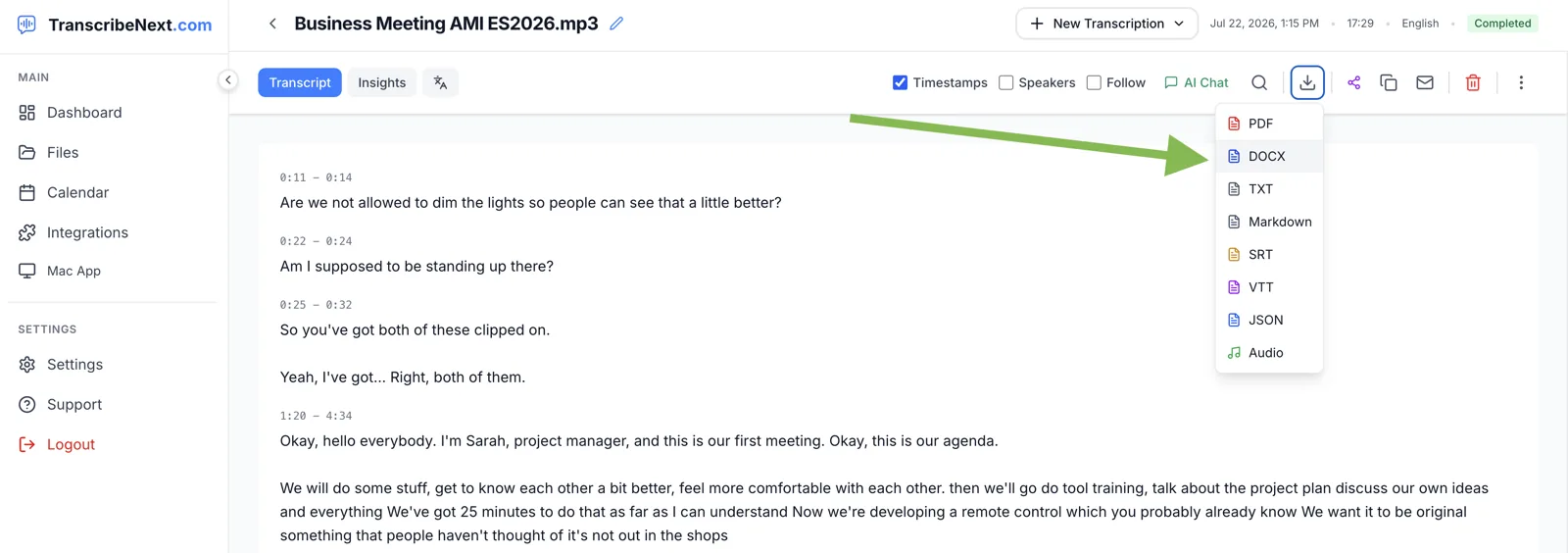
When the format is unsupported, the month's 300 minutes are gone, or you do not have Microsoft 365 at all, the pattern is the same: transcribe the file somewhere that reads it, then export a Word document. Word opens the `.docx` like any other — the transcript arrives as editable text with the formatting intact, and nothing has to be pasted.
1. Upload the recording. Drag it into the uploader on this page, or open the full uploader in any browser. Any of the 27 extensions in the table above works, including video files — the audio track is extracted server-side.
2. Pick the language and options. Leave language on auto-detect or set it manually; a fixed language helps with strong accents or background noise. Turn on speaker labels if more than one person talks.
3. Review and export. Read and correct the transcript in the browser, then choose DOCX from the download menu.
Be aware of our own limits before you rely on this, because they matter as much as Microsoft's:
How to transcribe a video in Word
Word's Transcribe accepts `.mp4` directly — it reads the audio track and ignores the picture, so a recorded Teams call or a screen capture exported as MP4 needs no separate audio extraction. That is the one video container it takes.
For everything else — `.mov` from an iPhone, `.mkv` from a recorded stream, `.avi`, `.wmv`, `.webm` — you have two options. Convert the file to MP4 first, which costs a re-encode and time proportional to the length of the video. Or upload the original to a transcriber that extracts the audio track itself and export the transcript as a `.docx`. The second route skips the conversion entirely, which on a two-hour recording is the difference between minutes and a coffee break.
Word Transcribe vs a dedicated transcriber
Neither is strictly better; they fail in different places. These are the published figures from each side, checked in July 2026:
| Microsoft Word Transcribe | TranscribeNext | |
|---|---|---|
| Cost to start | Microsoft 365 subscription required | 5-minute preview, no account |
| Formats accepted | 4 (.mp3, .wav, .m4a, .mp4) | 27 audio and video extensions |
| Monthly cap | 300 min (30,000 with Copilot) | No monthly minutes cap; daily file counts by plan |
| Per-file limits | Not published | 50 MB / 2 h file with 5-min preview on Free · 2 GB / 5 h Plus · 5 GB / 8 h Premium |
| Languages | 80+ locales | 99 (Whisper family) |
| Speakers | Separated, generic labels | Renameable, color-coded labels |
| Output | Into the Word document | DOCX, PDF, TXT, Markdown, SRT, VTT, JSON |
| Where audio goes | Transcribed Files folder on OneDrive | Cloud pipeline, or fully on-device with the Mac app |
| Best when | You already write in Word and the file is MP3/M4A | The format is unusual, the file is long, or you need subtitles |
The honest summary: if you pay for Microsoft 365 and your recording is an MP3 of a meeting, Word's built-in route is the fewest clicks and you should use it. The moment the file is a voice note, a `.mov`, longer than the monthly allowance, or you need SRT subtitles out the other end, it stops being the right tool.
Timestamps and speaker labels in the Word document
Both routes give you a structured transcript rather than a wall of text, with one meaningful difference.
Word timestamps each block and, in Microsoft's words, converts speech to a transcript "with each speaker individually separated." The labels are generic — Speaker 1, Speaker 2 — and you rename them in the transcript pane before inserting. You can also edit any section in place to correct recognition errors, which is worth doing before the text lands in the document.
A dedicated transcriber additionally lets you decide what reaches the file. In our DOCX export, timestamps are an explicit option rather than a default — a transcript meant for reading exports clean, and a transcript meant for review exports stamped. Which stamp format to choose, and how accurate timestamped transcription is on real meeting audio, has its own guide. Speakers are labeled, color-coded per segment, and renameable to real names, and those names carry through into the Word document.
One thing neither tool does well: overlapping speech. When two people talk at once, both engines merge or drop words. That is a property of the recording, not the software.
The limits people hit first
In rough order of how often they bite:
Test methodology and results
Two figures in this article are ours and measured rather than estimated.
1. Transcription speed (production log)
Test date: 24 July 2026
Test file: 58-minute meeting recording (3,486 seconds)
Engine: TranscribeNext cloud pipeline (OpenAI Whisper large-v3-turbo)
Result: 2 minutes 22 seconds; 47,059 characters of transcript
One file on one day, not a guaranteed rate — queue load, length and audio quality all move it.
2. DOCX generation time
Test date: 27 July 2026
Input: a transcript the size of the run above — 47,425 characters across 325 diarized segments, with timestamps enabled
Method: the production DOCX exporter, called directly, timed from call to the last byte of the stream; 5 consecutive runs on Node 20.19.5, Apple M1 Plus
Result: 74–98 ms (median 84 ms), producing a 31 KB .docx
Text was synthetic non-repeating prose so the file size reflects realistic compression rather than an artificially compressible transcript. Document generation is a small fraction of total export time; network transfer dominates.
Last tested: 27 July 2026
The reason the second figure is worth publishing: the step people worry about — "how long will it take to turn an hour-long transcript into a Word file?" — is not the slow part. An hour of speech becomes a 31 KB document in under a tenth of a second. The time cost lives entirely in the transcription and, for Word's route, in the upload.
FAQ
Can Microsoft Word transcribe an audio file? Yes. Word has a built-in Transcribe feature that converts a recording into text with each speaker separated and timestamps on every block. It requires an active Microsoft 365 subscription, an internet connection, and a file in MP3, WAV, M4A or MP4 format. Microsoft's published cap is 300 minutes of uploaded audio per month, or 30,000 minutes with a Microsoft Copilot license.
How do I transcribe an audio file in Word? Open the Home tab in Word, click the arrow next to the Dictate button and choose Transcribe, then click Upload audio and select your file. Word uploads the recording to the Transcribed Files folder in your OneDrive and processes it in the cloud. When it finishes, click Add to document to insert the transcript, or save the full transcript as a separate Word document.
Which audio formats can Word transcribe? Four: .mp3, .wav, .m4a and .mp4. Everything else — AAC, FLAC, OGG, Opus (WhatsApp and Telegram voice notes), WMA, AMR, AIFF, CAF, M4B, and video containers such as MOV, MKV, AVI, WMV and WebM — has to be converted first, or transcribed in a tool that reads it directly and then exported as a .docx.
Does Word transcribe audio for free? No. Transcribe requires an active Microsoft 365 subscription. There is no free tier for uploaded-file transcription in Word. Dictation into a document with the Dictate button is a separate feature and does not transcribe an existing recording.
Can Word for the web transcribe audio? Yes, and for many subscribers it is the only place the feature appears. Microsoft states that in the desktop app, Transcribe is currently only available in Word for Microsoft 365 on Windows in Commercial Tenants — so personal and family subscribers generally use Word for the web. Microsoft also notes that Transcribe only works in the new Microsoft Edge and Chrome, and that transcription for Government tenants is available only in Word for the web.
How do I transcribe a video in Word? Word accepts .mp4 directly, so an MP4 video can be uploaded to Transcribe like an audio file — it reads the audio track. Other video containers (MOV from an iPhone, MKV, AVI, WMV, WebM) are not accepted and must be converted to MP4 first, or run through a tool that extracts the audio track itself and exports the transcript as a Word document.
Does the Word transcript include timestamps and speaker names? Word timestamps each block and separates speakers, but it labels them generically (Speaker 1, Speaker 2) rather than by name; you rename them in the transcript pane. You can also edit any section to correct recognition errors before inserting it into the document.
What is the file size limit for Word transcription? Microsoft's own support page publishes a monthly minutes cap but does not state a per-file size limit, so treat third-party figures with caution. The practical constraint most people hit first is the 300-minutes-per-month allowance, not an individual file.
How do I get a transcript into Word if my file is not supported? Transcribe the recording in a tool that reads your format and export the result as .docx, then open it in Word. TranscribeNext accepts 27 audio and video extensions, including Opus voice notes, FLAC, WMA, AMR, MOV and MKV, and exports DOCX, PDF, TXT, Markdown, SRT, VTT and JSON. DOCX export is on the paid plans; the free plan exports TXT, Markdown and JSON.
Where does Word store the audio I upload? Microsoft states that recordings are stored in the Transcribed Files folder on your OneDrive. The transcription itself runs in the cloud, not on your computer — worth knowing before uploading a confidential recording.
Sources
Related guides: How to convert M4A to text · How to transcribe audio files quickly · Best Mac apps to transcribe audio · Transcription tips for interviews
Get your recording into Word
If your file is an MP3, WAV, M4A or MP4 and you have Microsoft 365, use Word's built-in Transcribe — it is the shortest path. If it is anything else, upload it in the form at the top of this page: the first 5 minutes are free with no account, and a paid plan exports a finished `.docx` that opens straight in Word.